# Research Companies In-Form
When a respondent enters a work email or a website, Surface reads that company's public
website in the background while they finish the form. An AI model answers questions you
write about it, called dimensions, and your routing conditions decide what happens next:
show the scheduler, ask more questions, or end the form. The model never routes on its own.
* Research starts about a second after the respondent stops typing, and runs while they
continue.
* It reads up to nine public pages: the homepage and the pricing, product, features,
solutions, about and customers pages.
* Each dimension returns one of the outcomes you define, with a confidence from 0 to 1.
The run also names the page that best supports its answers.
* Personal mailboxes such as Gmail are skipped: there is no company to research.
## Step 1: Turn on Research for a Step [#step-1-turn-on-research-for-a-step]
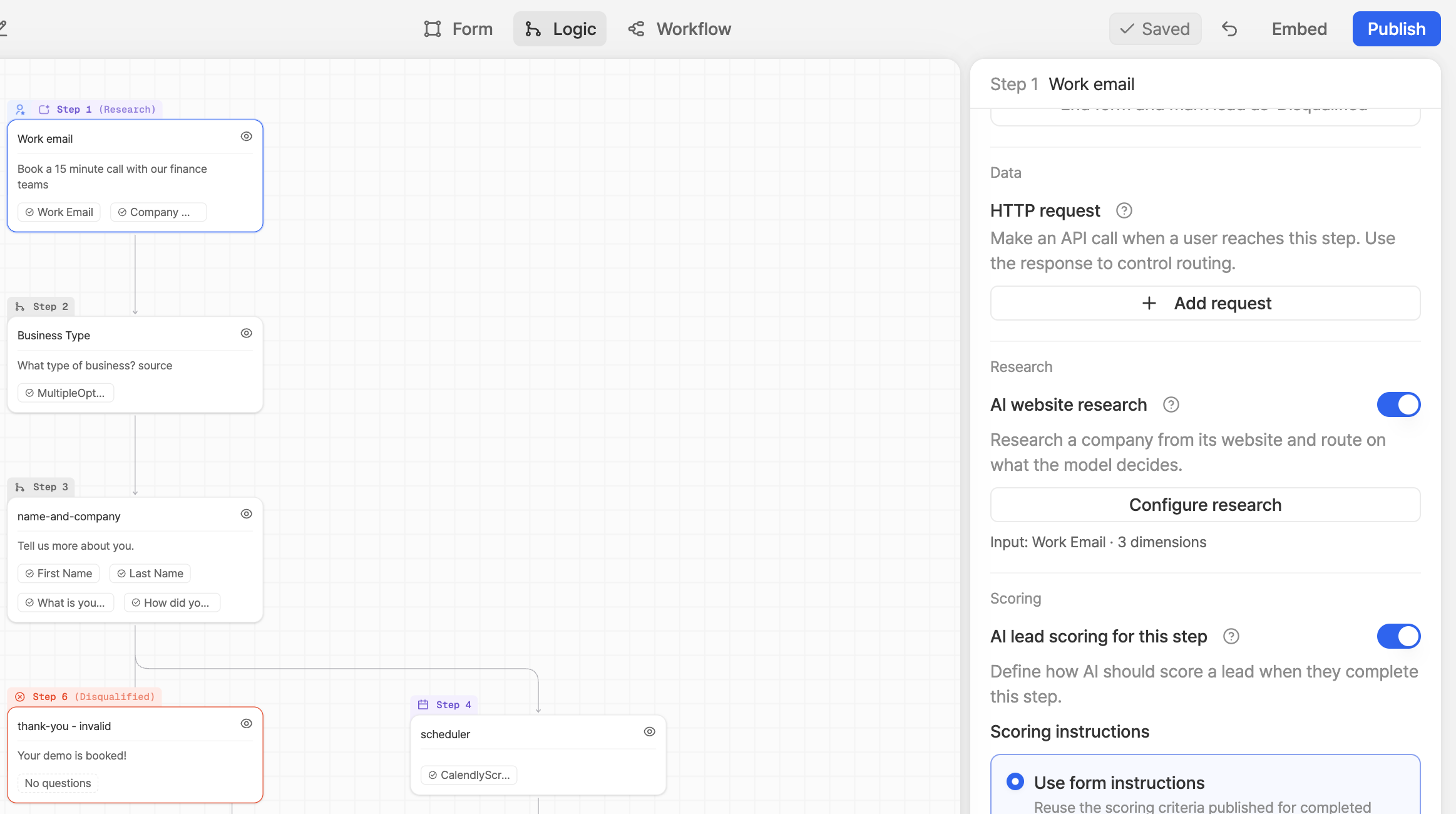 Open **Logic** and select the step that asks for the email or website. Under **Research**,
switch on **AI website research** and choose **Configure research**. The line under the
button shows the input field and how many dimensions are ready, or what is still missing.
## Step 2: Describe the Research [#step-2-describe-the-research]
Open **Logic** and select the step that asks for the email or website. Under **Research**,
switch on **AI website research** and choose **Configure research**. The line under the
button shows the input field and how many dimensions are ready, or what is still missing.
## Step 2: Describe the Research [#step-2-describe-the-research]
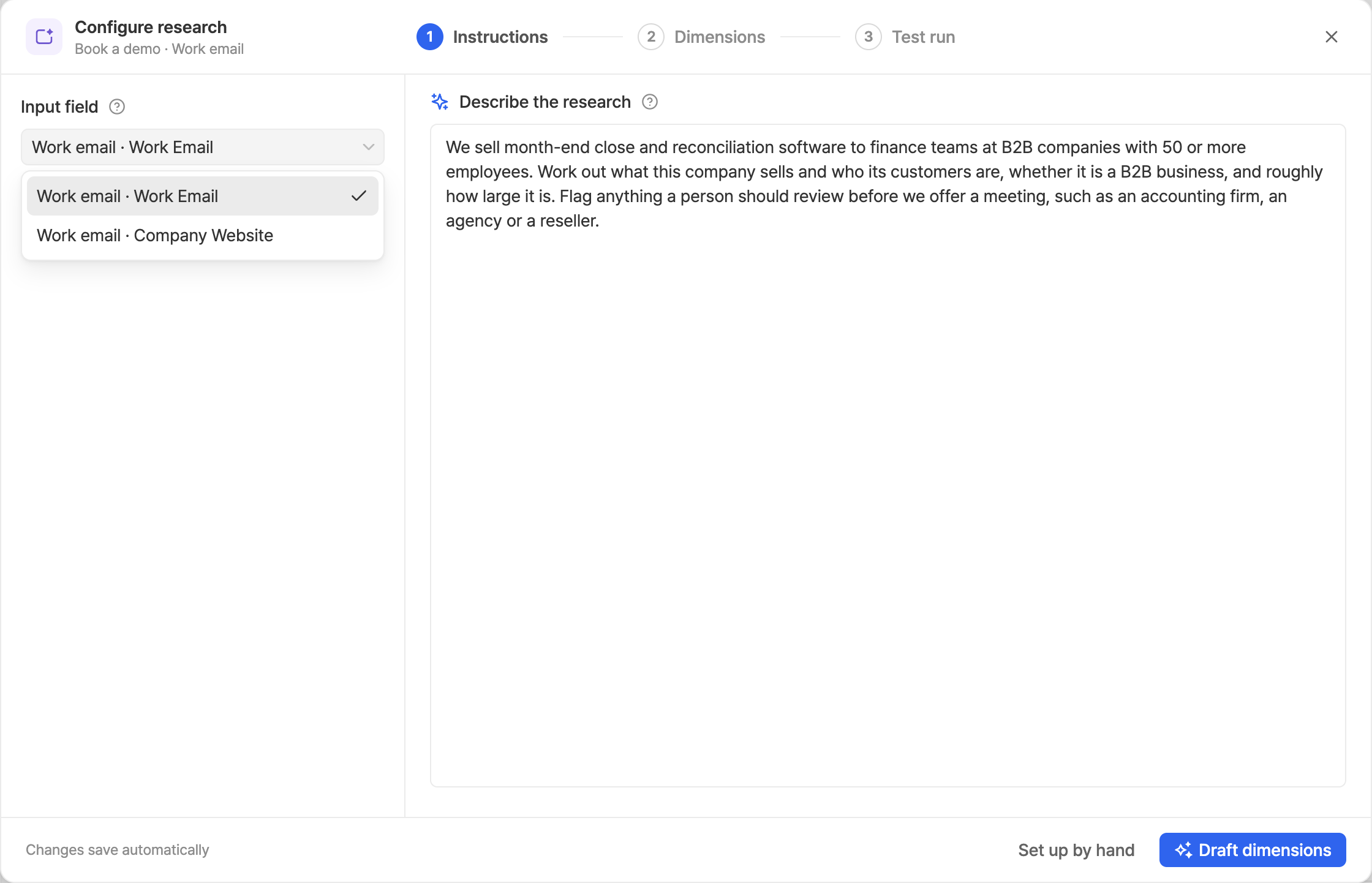 1. **Input field** is the answer research starts from: an email or website field, or a
short text field, on this step or an earlier one. Work emails, domains and website URLs
are researched.
2. **Describe the research** in your own words: what you sell, what you want to know about
the company, and any rules the decision follows.
3. **Draft dimensions** writes the research goal and the dimensions from your description.
**Set up by hand** starts with none.
Drafting again replaces the goal and the dimensions. Dimensions used in routing are kept.
## Step 3: Review the Dimensions [#step-3-review-the-dimensions]
1. **Input field** is the answer research starts from: an email or website field, or a
short text field, on this step or an earlier one. Work emails, domains and website URLs
are researched.
2. **Describe the research** in your own words: what you sell, what you want to know about
the company, and any rules the decision follows.
3. **Draft dimensions** writes the research goal and the dimensions from your description.
**Set up by hand** starts with none.
Drafting again replaces the goal and the dimensions. Dimensions used in routing are kept.
## Step 3: Review the Dimensions [#step-3-review-the-dimensions]
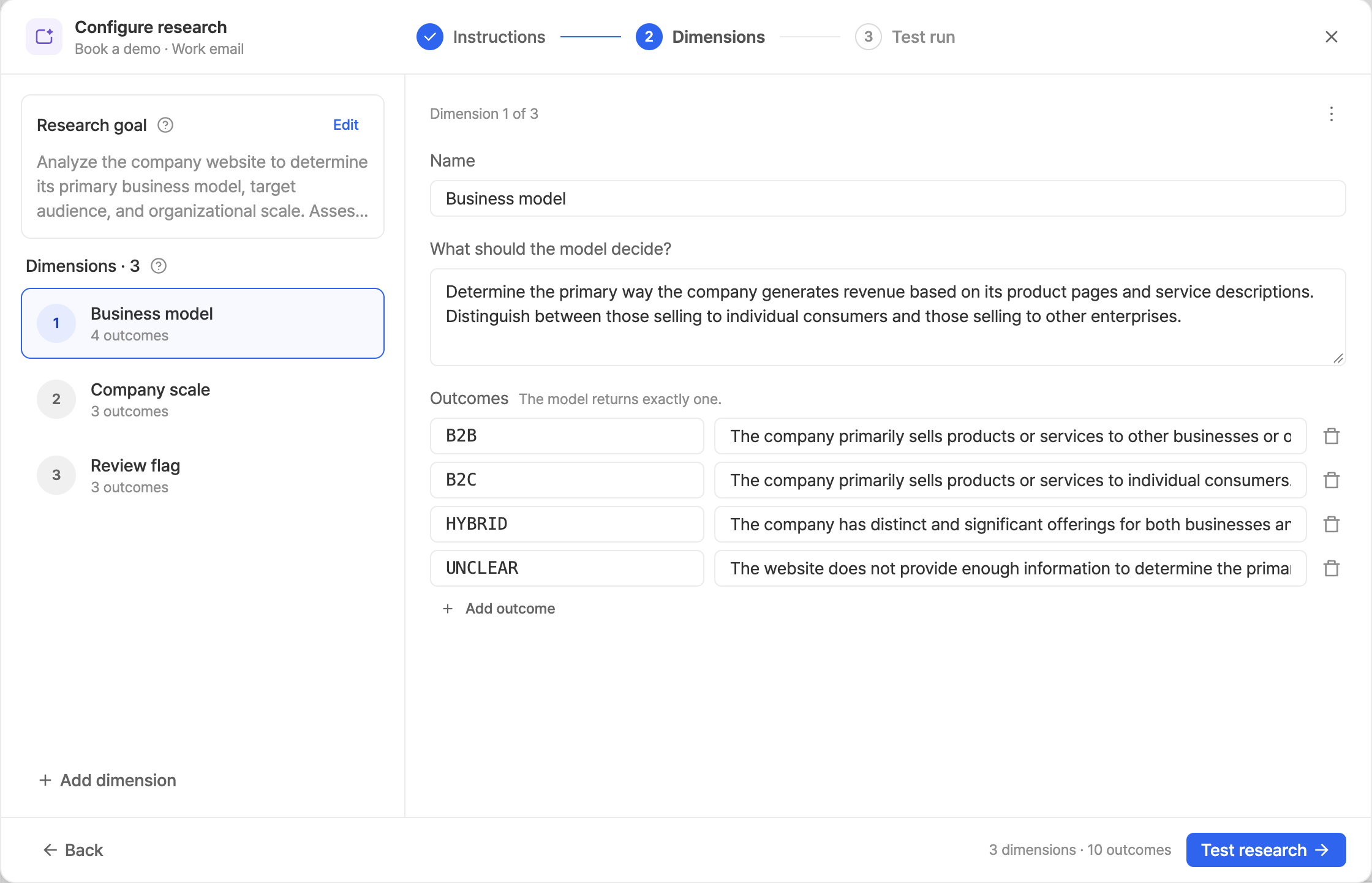 A dimension is one question. The model answers it by picking exactly one outcome.
* **Name**: how the dimension shows in routing and in responses.
* **What should the model decide?**: the question, and how to judge it.
* **Outcomes**: 2 to 25 values, each with what it means. Routing compares against the
value, such as `B2B`.
The **Research goal** at the top is the task the model keeps in mind on every run. A step
can have up to 20 dimensions.
Give each dimension an outcome for "can't tell", such as `UNCLEAR`, so the model has an
honest answer when the site doesn't say. Ask it to judge what the company sells and
charges for, not the keywords on the page.
## Step 4: Test on a Real Website [#step-4-test-on-a-real-website]
A dimension is one question. The model answers it by picking exactly one outcome.
* **Name**: how the dimension shows in routing and in responses.
* **What should the model decide?**: the question, and how to judge it.
* **Outcomes**: 2 to 25 values, each with what it means. Routing compares against the
value, such as `B2B`.
The **Research goal** at the top is the task the model keeps in mind on every run. A step
can have up to 20 dimensions.
Give each dimension an outcome for "can't tell", such as `UNCLEAR`, so the model has an
honest answer when the site doesn't say. Ask it to judge what the company sells and
charges for, not the keywords on the page.
## Step 4: Test on a Real Website [#step-4-test-on-a-real-website]
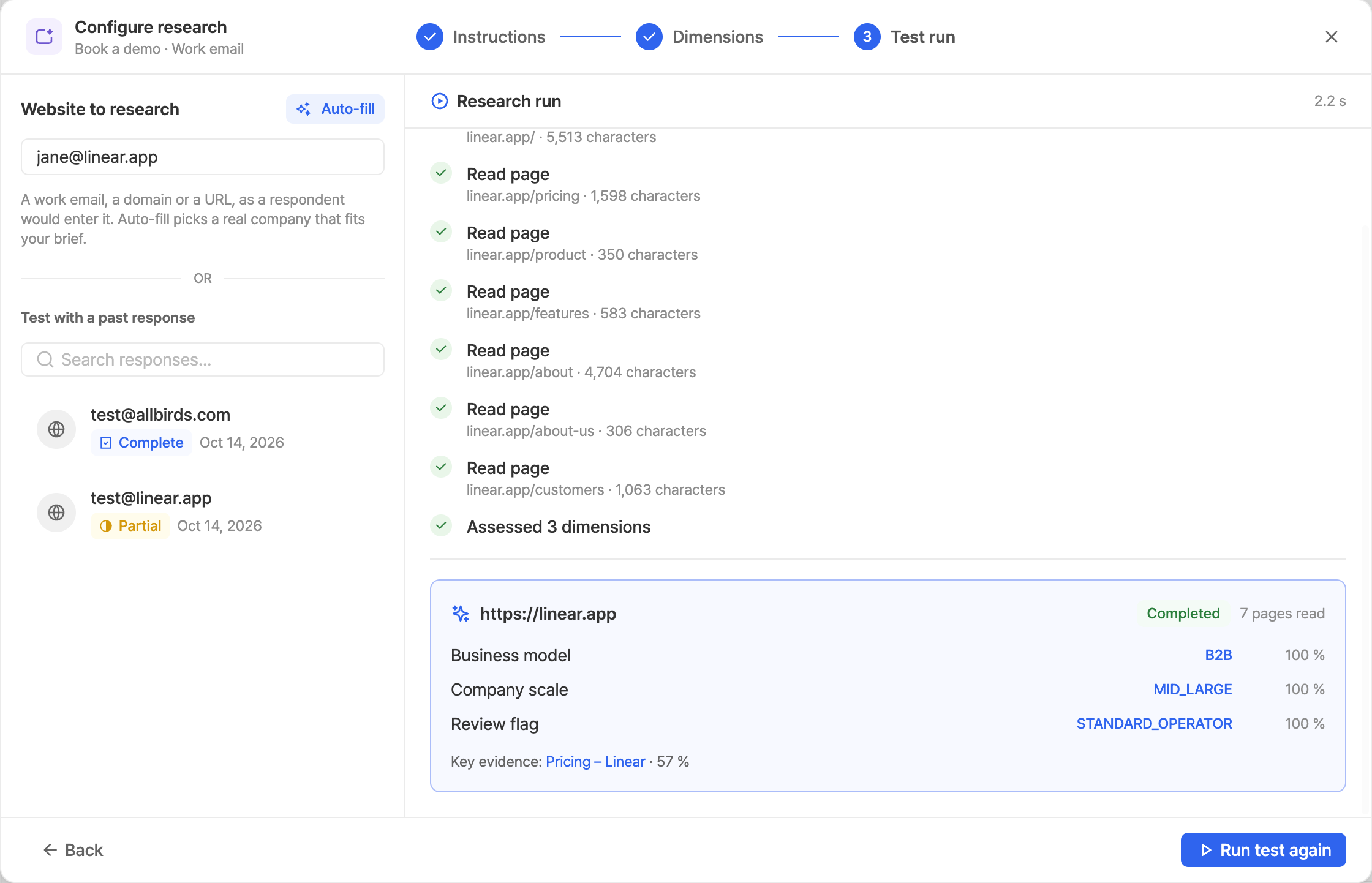 Enter a work email, domain or URL, pick a past response that answered the input field, or
choose **Auto-fill** to try a real company that fits your description. **Run test** runs
exactly as the live form does. It lists each page read, then each dimension's outcome and
confidence, and the key evidence page.
Edit the dimensions and run again until the outcomes match what you would decide yourself.
## Step 5: Route on the Results [#step-5-route-on-the-results]
Enter a work email, domain or URL, pick a past response that answered the input field, or
choose **Auto-fill** to try a real company that fits your description. **Run test** runs
exactly as the live form does. It lists each page read, then each dimension's outcome and
confidence, and the key evidence page.
Edit the dimensions and run again until the outcomes match what you would decide yourself.
## Step 5: Route on the Results [#step-5-route-on-the-results]
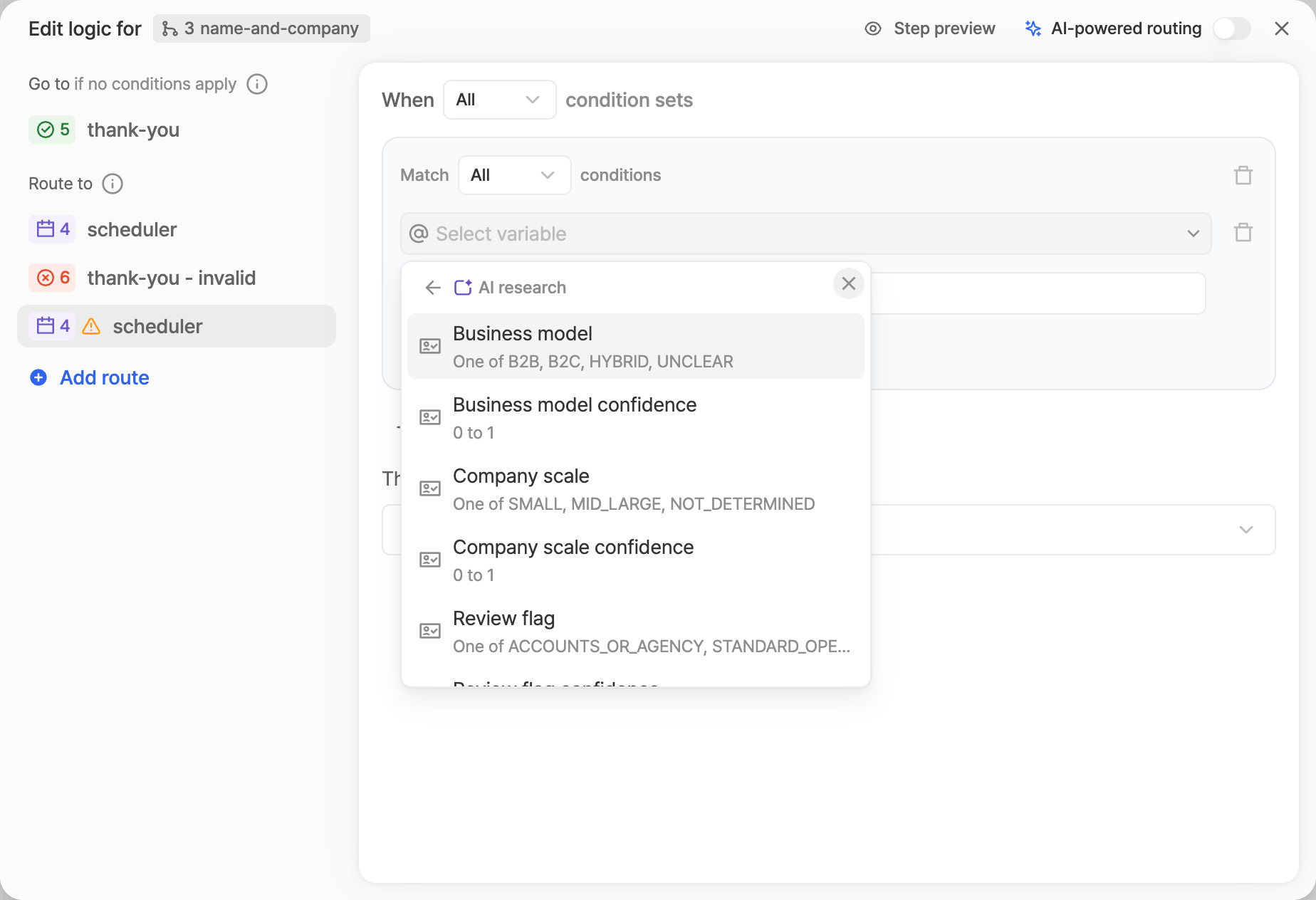 Close the dialog and choose **Manage conditions** on the step that should decide. Add a
route and pick **AI research** as the source. Each dimension gives two fields: its outcome,
and its confidence from 0 to 1. **Research status** says whether the run completed.
Route from a step after the research step where you can, so research finishes while the
respondent answers it. When a step routes on research that is still running, its **Next**
button waits for it.
Close the dialog and choose **Manage conditions** on the step that should decide. Add a
route and pick **AI research** as the source. Each dimension gives two fields: its outcome,
and its confidence from 0 to 1. **Research status** says whether the run completed.
Route from a step after the research step where you can, so research finishes while the
respondent answers it. When a step routes on research that is still running, its **Next**
button waits for it.
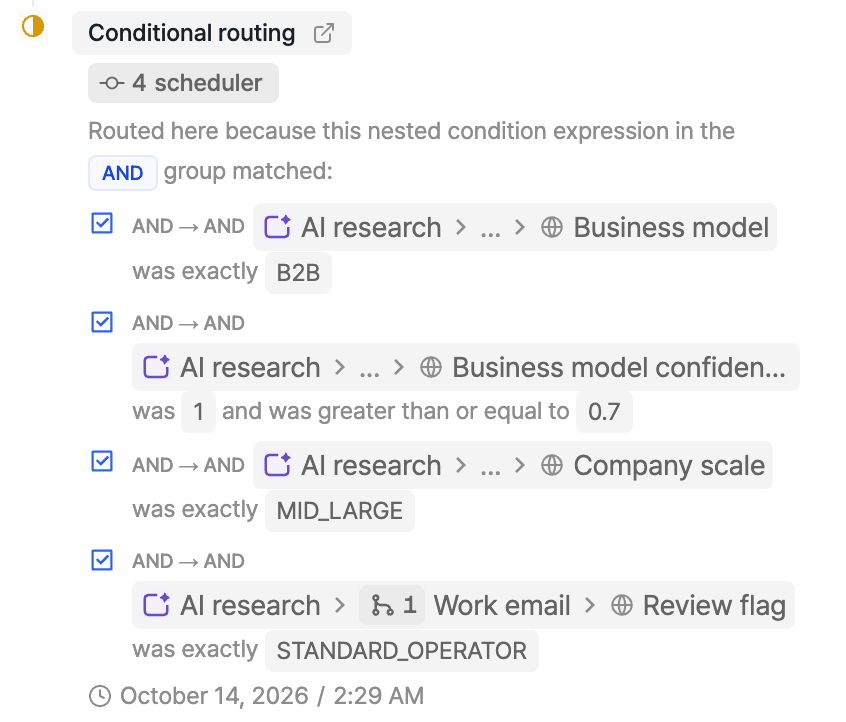
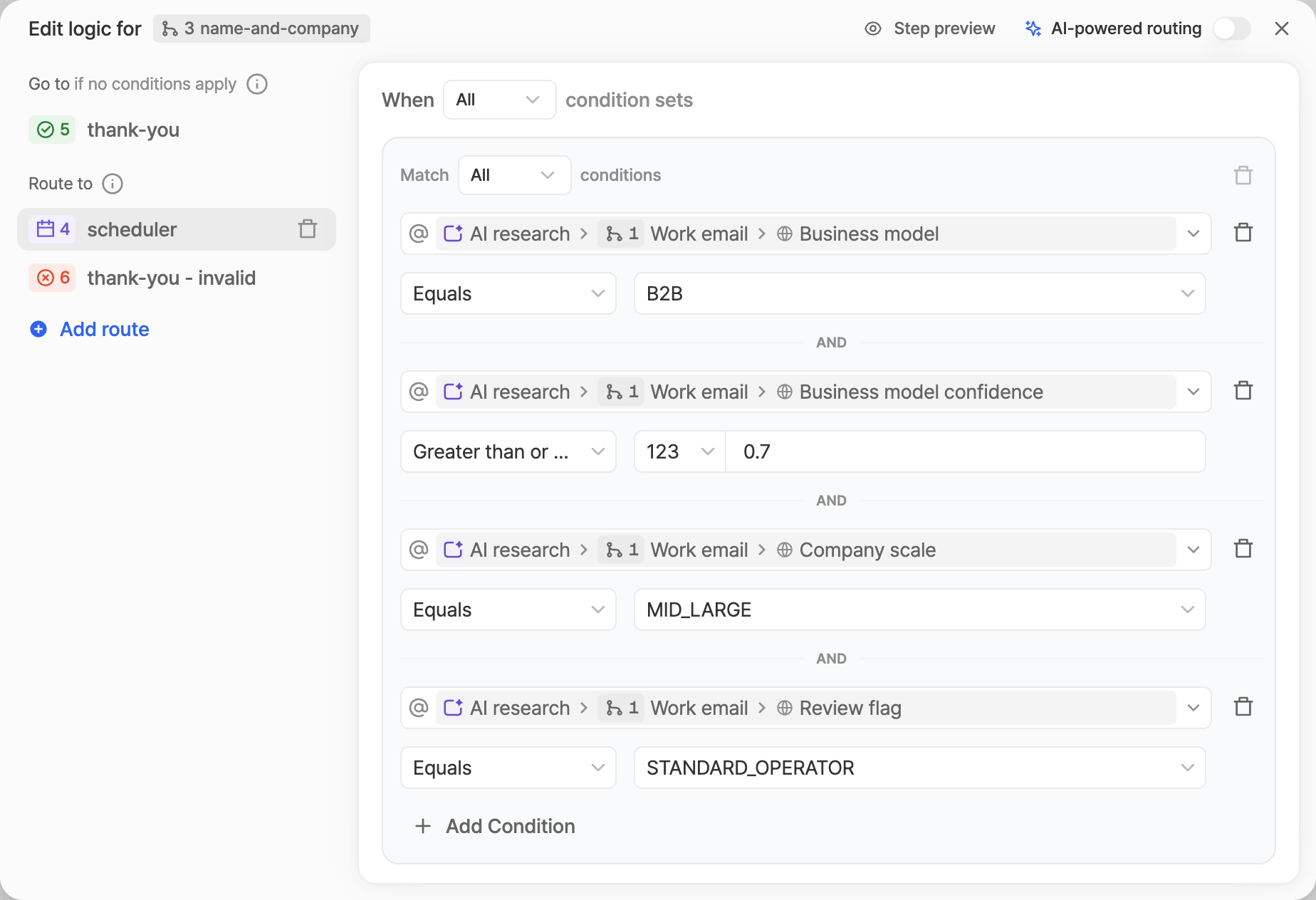 This route sends B2B companies of 50 or more people, with nothing to review, to the
scheduler, when the model is at least 70% confident about the business model.
This route sends B2B companies of 50 or more people, with nothing to review, to the
scheduler, when the model is at least 70% confident about the business model.
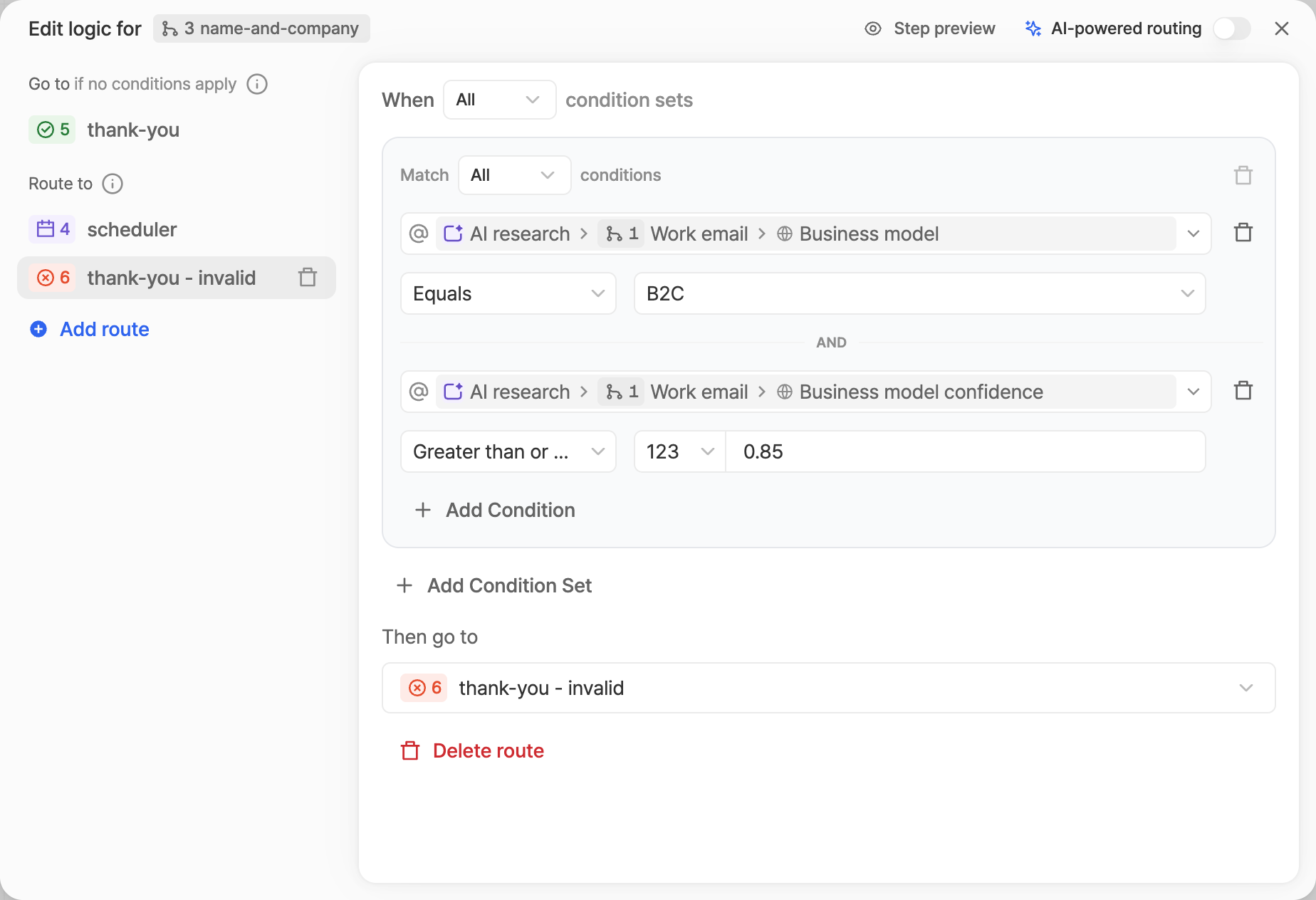 This one ends the form only when the model is at least 85% confident the company sells to
consumers. Everyone else follows the default route: here, a thank-you step that sales
follows up from.
When research doesn't complete, its dimensions have no value, so conditions that compare
them don't match and the step's default route applies. Point the default route somewhere
safe for an unknown company, never at disqualification.
| Research status | When |
| --------------------- | ---------------------------------------------------------------------------------------- |
| Completed | The model answered the dimensions. |
| Insufficient evidence | No page of the site could be read. |
| Skipped | The answer was a personal mailbox, or not an email, domain or URL. |
| Unavailable | The run failed or timed out, or the respondent entered more than three different inputs. |
## Step 6: Publish and Read the Results [#step-6-publish-and-read-the-results]
This one ends the form only when the model is at least 85% confident the company sells to
consumers. Everyone else follows the default route: here, a thank-you step that sales
follows up from.
When research doesn't complete, its dimensions have no value, so conditions that compare
them don't match and the step's default route applies. Point the default route somewhere
safe for an unknown company, never at disqualification.
| Research status | When |
| --------------------- | ---------------------------------------------------------------------------------------- |
| Completed | The model answered the dimensions. |
| Insufficient evidence | No page of the site could be read. |
| Skipped | The answer was a personal mailbox, or not an email, domain or URL. |
| Unavailable | The run failed or timed out, or the respondent entered more than three different inputs. |
## Step 6: Publish and Read the Results [#step-6-publish-and-read-the-results]
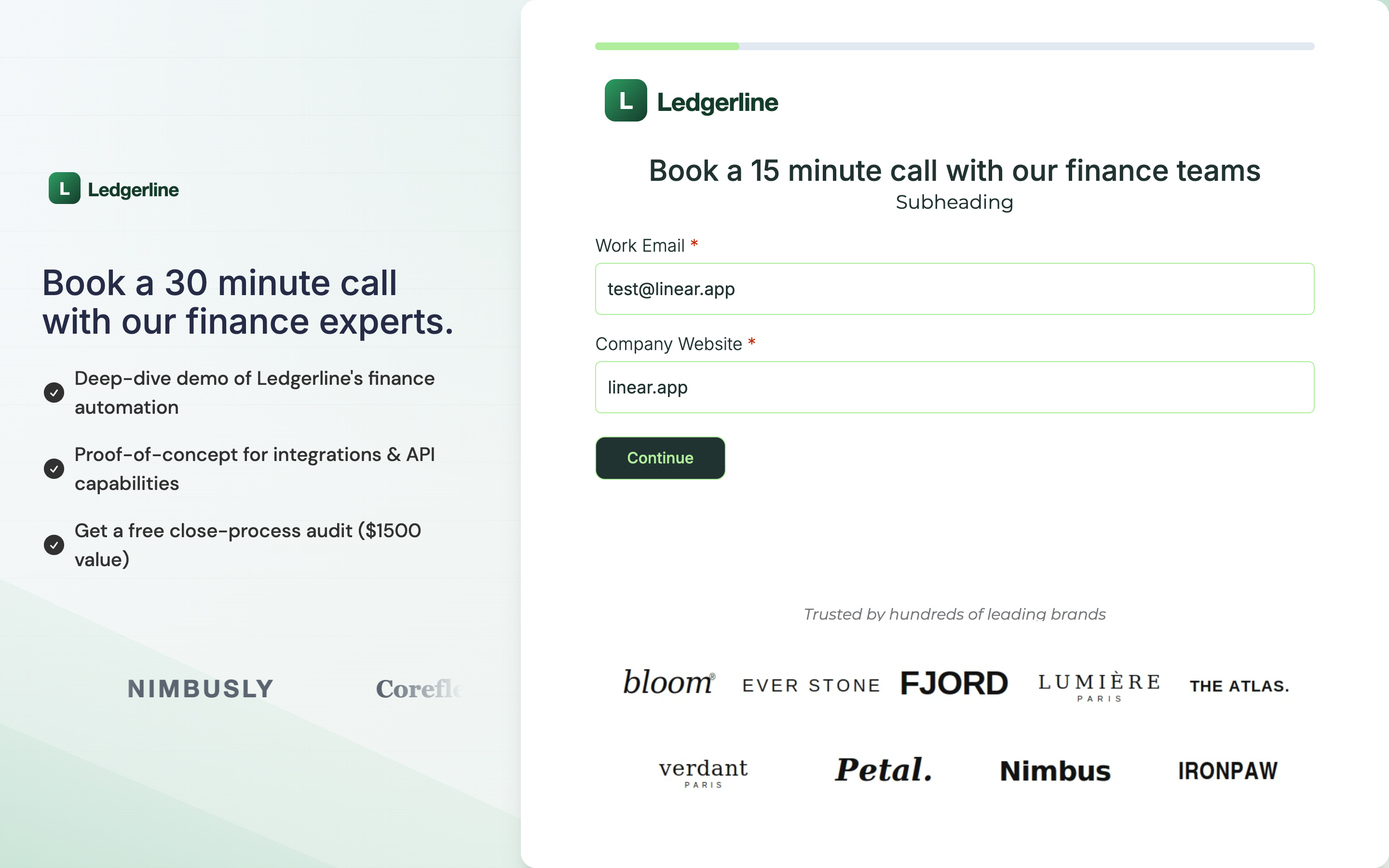 Publish the form. Research only runs on the published form: in the editor's preview it
reports **Unavailable**, so use the test run there.
Publish the form. Research only runs on the published form: in the editor's preview it
reports **Unavailable**, so use the test run there.
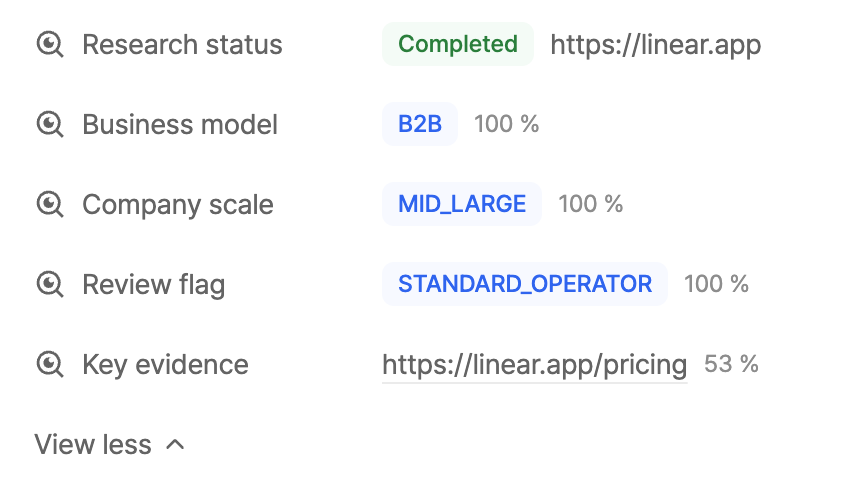
 Open a response to see what research decided: the research status, each dimension's
outcome with its confidence, and the key evidence page. For completed research, a
**Rationale** and, when there is one, a **Qualifying question** to ask on the call are
added shortly after the response is submitted. The response's **Form journey** shows which
research conditions sent the respondent where.
To route without AI research, see [Conditional Logic](https://www.withsurface.com/docs/platform/forms/conditional-logic).
Open a response to see what research decided: the research status, each dimension's
outcome with its confidence, and the key evidence page. For completed research, a
**Rationale** and, when there is one, a **Qualifying question** to ask on the call are
added shortly after the response is submitted. The response's **Form journey** shows which
research conditions sent the respondent where.
To route without AI research, see [Conditional Logic](https://www.withsurface.com/docs/platform/forms/conditional-logic).