# Step 3: Event-Based Email Campaigns
Create **two event-triggered campaigns** in Customer.io: one for partial form submissions and one for completed. Each sends a series of follow-up emails with delays between them.
## Create the Partial Submission Campaign [#create-the-partial-submission-campaign]
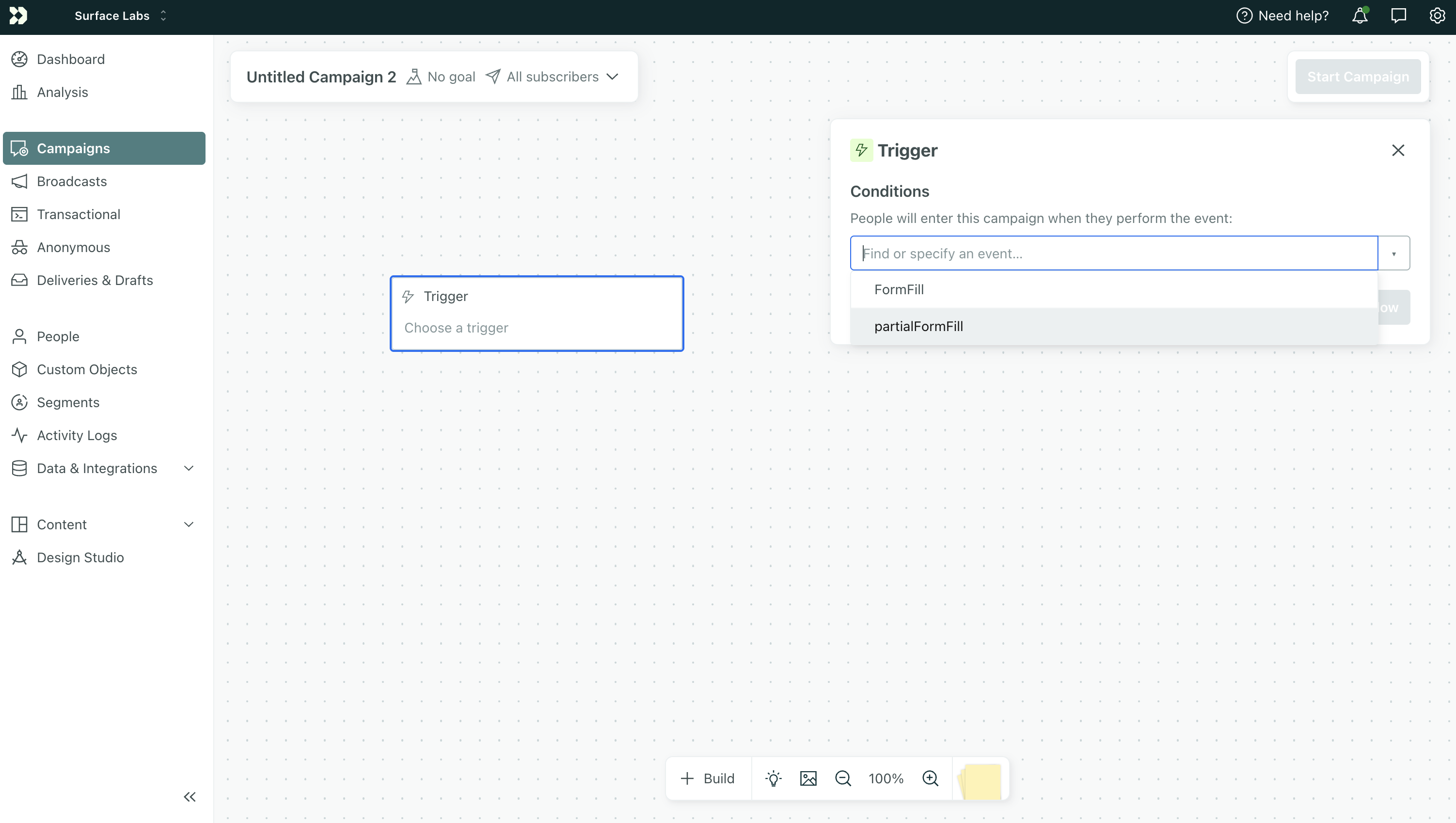 1. In Customer.io, go to **Campaigns** and click **Create Campaign**
2. Click **Event** as the trigger type
3. Configure the trigger:
* **Event name**: `partialFormFilled` (must match the event from your partial webhook campaign in Step 1)
* **Workspace**: Select the workspace where your leads are stored
* Add any filters if needed (e.g., segment, attribute)
## Build the Email Sequence [#build-the-email-sequence]
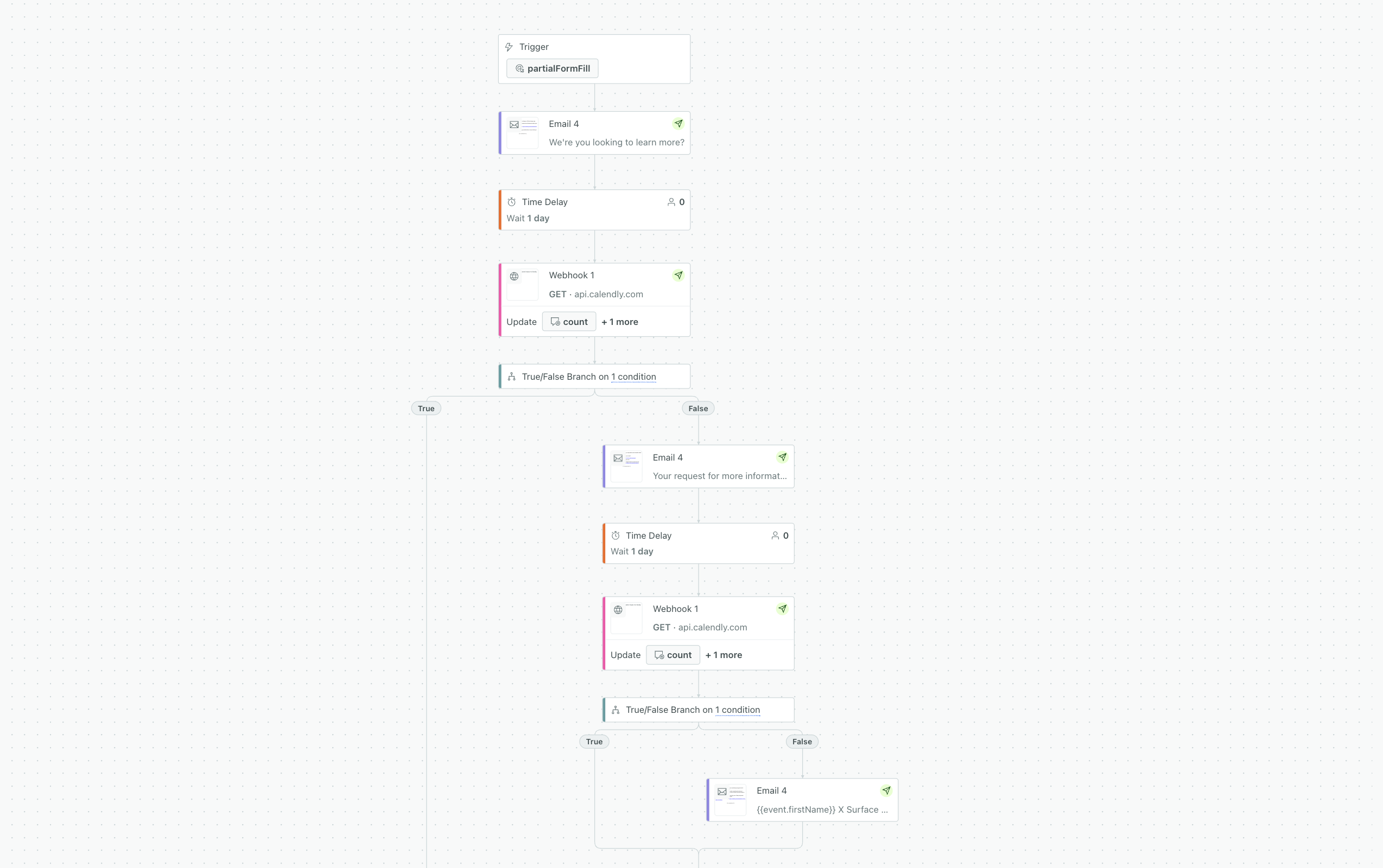
Add your follow-up emails and delays to the campaign workflow:
Add an **Email** block as the first step. This sends immediately when the person enters the campaign.
Add a **Delay** block. Set the delay (e.g., 2 days, 3 days) before the next touchpoint.
Add a **Send and receive data** (webhook) block that checks Calendly. If the meeting is booked, the person exits. Otherwise, continue. See [Step 4: Calendly Meeting Check](https://www.withsurface.com/docs/guides/email-sequences-customerio-calendly/step-4-calendly-check).
Add another **Email** block. This sends only if the person didn't book a meeting.
Add another **Delay** → **Webhook (Calendly check)** → **Email**. Repeat for as many follow-ups as you want.
1. In Customer.io, go to **Campaigns** and click **Create Campaign**
2. Click **Event** as the trigger type
3. Configure the trigger:
* **Event name**: `partialFormFilled` (must match the event from your partial webhook campaign in Step 1)
* **Workspace**: Select the workspace where your leads are stored
* Add any filters if needed (e.g., segment, attribute)
## Build the Email Sequence [#build-the-email-sequence]
Add your follow-up emails and delays to the campaign workflow:
Add an **Email** block as the first step. This sends immediately when the person enters the campaign.
Add a **Delay** block. Set the delay (e.g., 2 days, 3 days) before the next touchpoint.
Add a **Send and receive data** (webhook) block that checks Calendly. If the meeting is booked, the person exits. Otherwise, continue. See [Step 4: Calendly Meeting Check](https://www.withsurface.com/docs/guides/email-sequences-customerio-calendly/step-4-calendly-check).
Add another **Email** block. This sends only if the person didn't book a meeting.
Add another **Delay** → **Webhook (Calendly check)** → **Email**. Repeat for as many follow-ups as you want.
 ## Create the Completed Submission Campaign [#create-the-completed-submission-campaign]
Repeat the same process for completed submissions:
1. Create a new campaign with **Event** trigger
2. Set **Event name**: `formCompleted` (must match the event from your completed webhook campaign in Step 1)
3. Build the same structure: Email → Delay → Calendly check → Email → …
4. Use different copy and timing if you want (e.g., shorter delays for completed submissions, since they're more engaged)
Completed leads are usually warmer, so a shorter, more sales-focused sequence often works. Partial leads tend to need more nurturing and a clearer call to action.
## Save and Activate [#save-and-activate]
1. Review each campaign
2. Click **Start Campaign** for both
3. They will trigger when the corresponding events fire from your webhook campaign
## Next Step [#next-step]
[Step 4: Calendly Meeting Check](https://www.withsurface.com/docs/guides/email-sequences-customerio-calendly/step-4-calendly-check), the webhook node that exits the campaign once a lead books a meeting.
## Create the Completed Submission Campaign [#create-the-completed-submission-campaign]
Repeat the same process for completed submissions:
1. Create a new campaign with **Event** trigger
2. Set **Event name**: `formCompleted` (must match the event from your completed webhook campaign in Step 1)
3. Build the same structure: Email → Delay → Calendly check → Email → …
4. Use different copy and timing if you want (e.g., shorter delays for completed submissions, since they're more engaged)
Completed leads are usually warmer, so a shorter, more sales-focused sequence often works. Partial leads tend to need more nurturing and a clearer call to action.
## Save and Activate [#save-and-activate]
1. Review each campaign
2. Click **Start Campaign** for both
3. They will trigger when the corresponding events fire from your webhook campaign
## Next Step [#next-step]
[Step 4: Calendly Meeting Check](https://www.withsurface.com/docs/guides/email-sequences-customerio-calendly/step-4-calendly-check), the webhook node that exits the campaign once a lead books a meeting.