# Translate a Form
Surface translates the texts you wrote: questions, options, buttons, placeholders,
marketing copy and thank-you screens. Validation messages and the other copy Surface
adds already follow the form language. Supported languages: English, Portuguese,
Spanish, French, Chinese, Arabic, Japanese and Korean.
## Step 1: Turn on translations [#step-1-turn-on-translations]
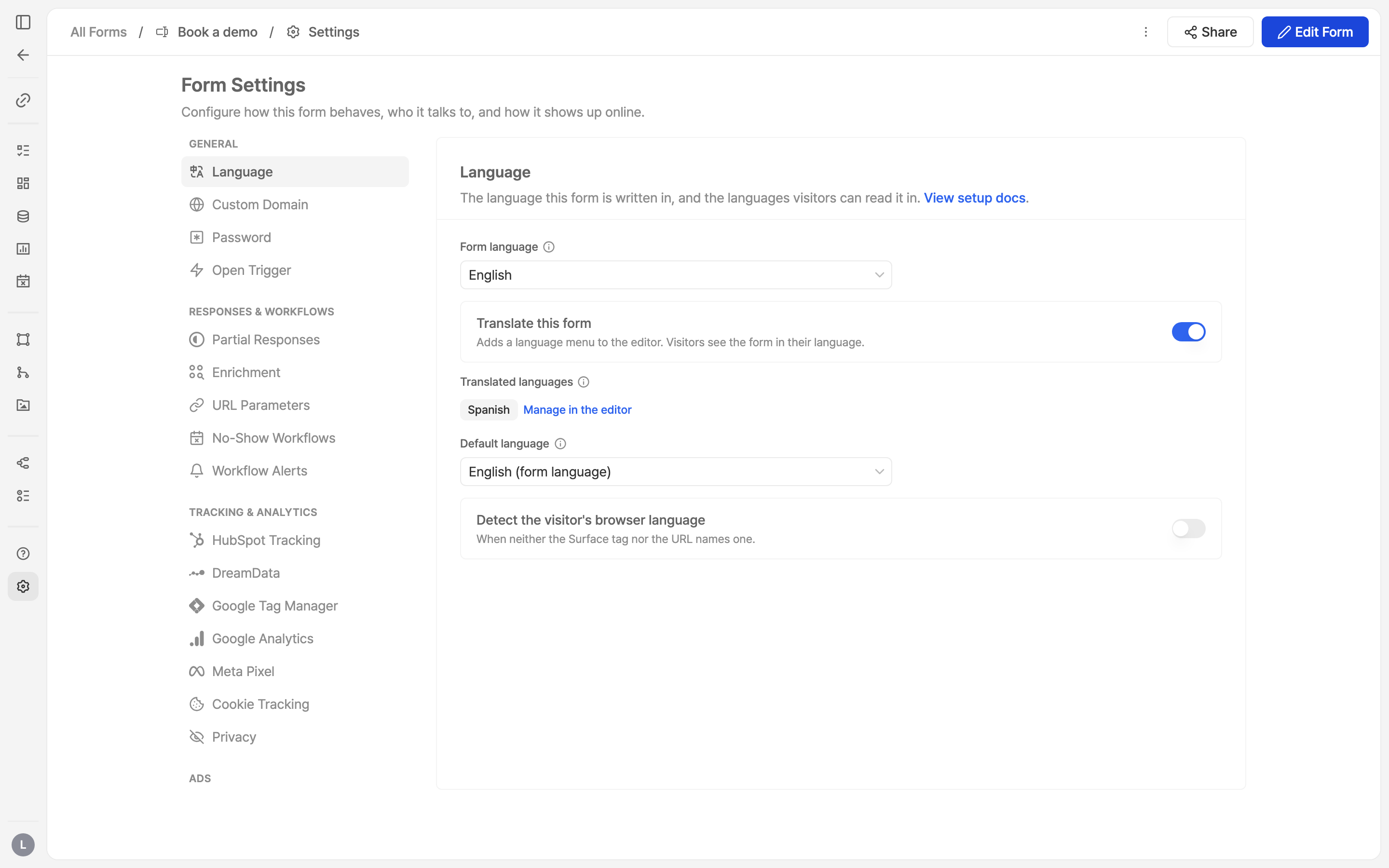 Open **Form Settings › Language**.
1. **Form language** is the language you wrote the form in.
2. Switch on **Translate this form**. The editor gains a language menu, and the
published form serves its translated languages.
Three settings appear once it is on:
* **Translated languages**: the languages this form is translated into. They are
added and removed in the editor (next step).
* **Default language**: shown when nothing else picks a language for a visitor.
* **Detect the visitor's browser language**: use the browser's language when it
is one of the translated ones.
## Step 2: Add a language [#step-2-add-a-language]
Open **Form Settings › Language**.
1. **Form language** is the language you wrote the form in.
2. Switch on **Translate this form**. The editor gains a language menu, and the
published form serves its translated languages.
Three settings appear once it is on:
* **Translated languages**: the languages this form is translated into. They are
added and removed in the editor (next step).
* **Default language**: shown when nothing else picks a language for a visitor.
* **Detect the visitor's browser language**: use the browser's language when it
is one of the translated ones.
## Step 2: Add a language [#step-2-add-a-language]
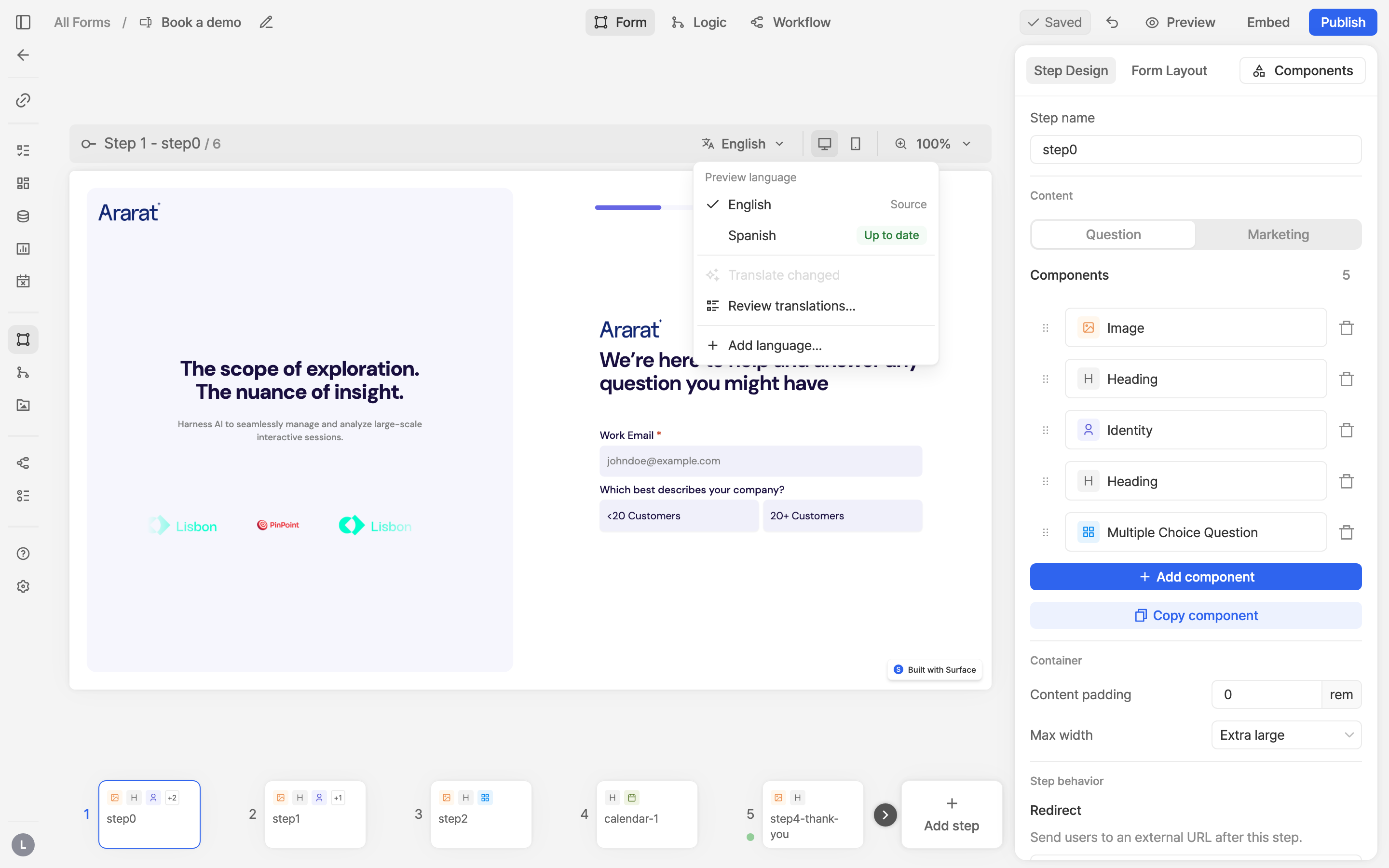 In the editor, the language menu sits above the preview. It lists the form language
and every translated language with its status: **Up to date**, **N to translate**,
**Not translated** or **Failed**.
In the editor, the language menu sits above the preview. It lists the form language
and every translated language with its status: **Up to date**, **N to translate**,
**Not translated** or **Failed**.
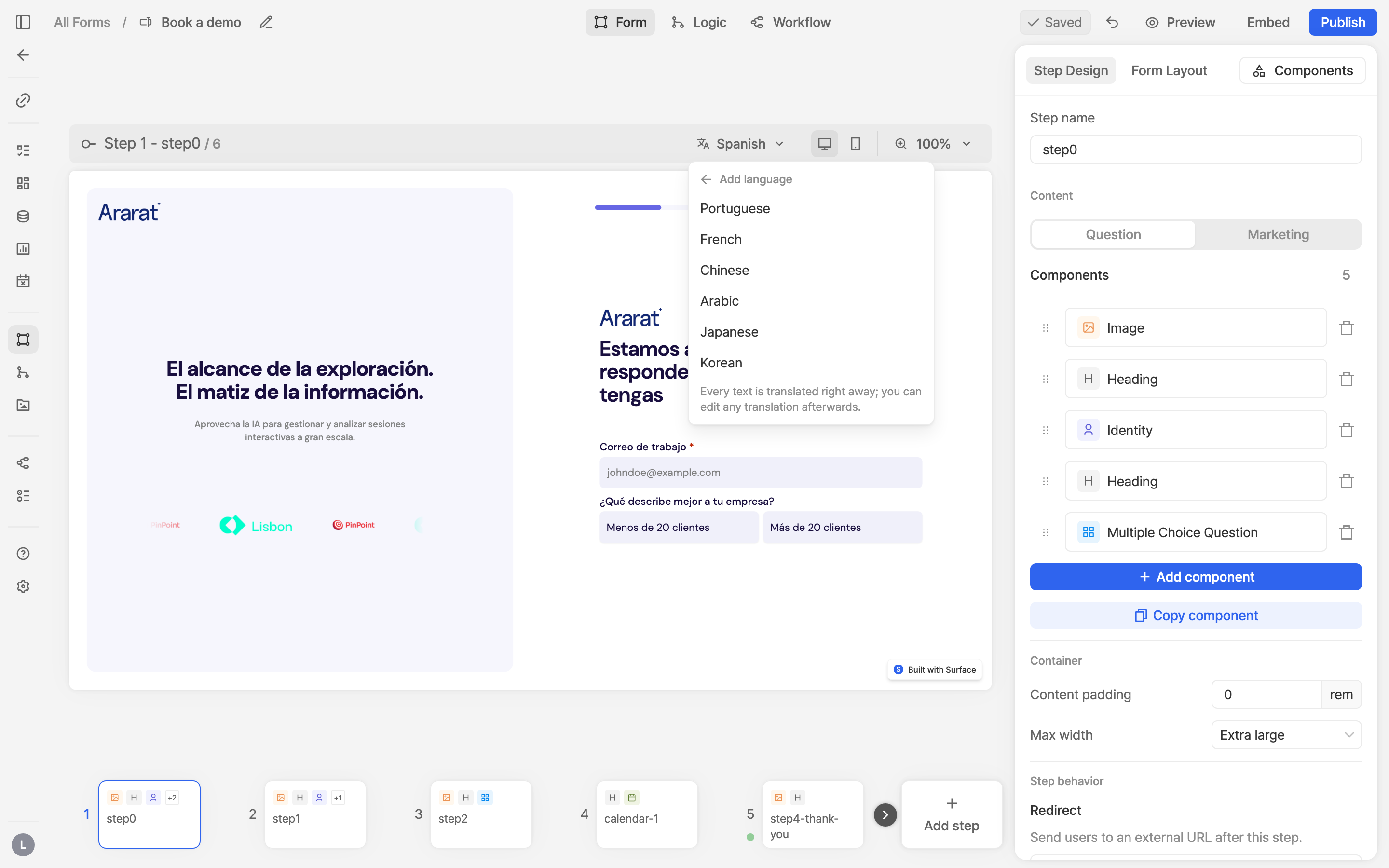 Choose **Add language…** and pick one. Every text is translated right away; a form
can hold up to four translated languages.
Translations are produced by AI. Preview and read through them before you
publish, especially product names and legal copy.
## Step 3: Preview and edit a translation [#step-3-preview-and-edit-a-translation]
Choose **Add language…** and pick one. Every text is translated right away; a form
can hold up to four translated languages.
Translations are produced by AI. Preview and read through them before you
publish, especially product names and legal copy.
## Step 3: Preview and edit a translation [#step-3-preview-and-edit-a-translation]
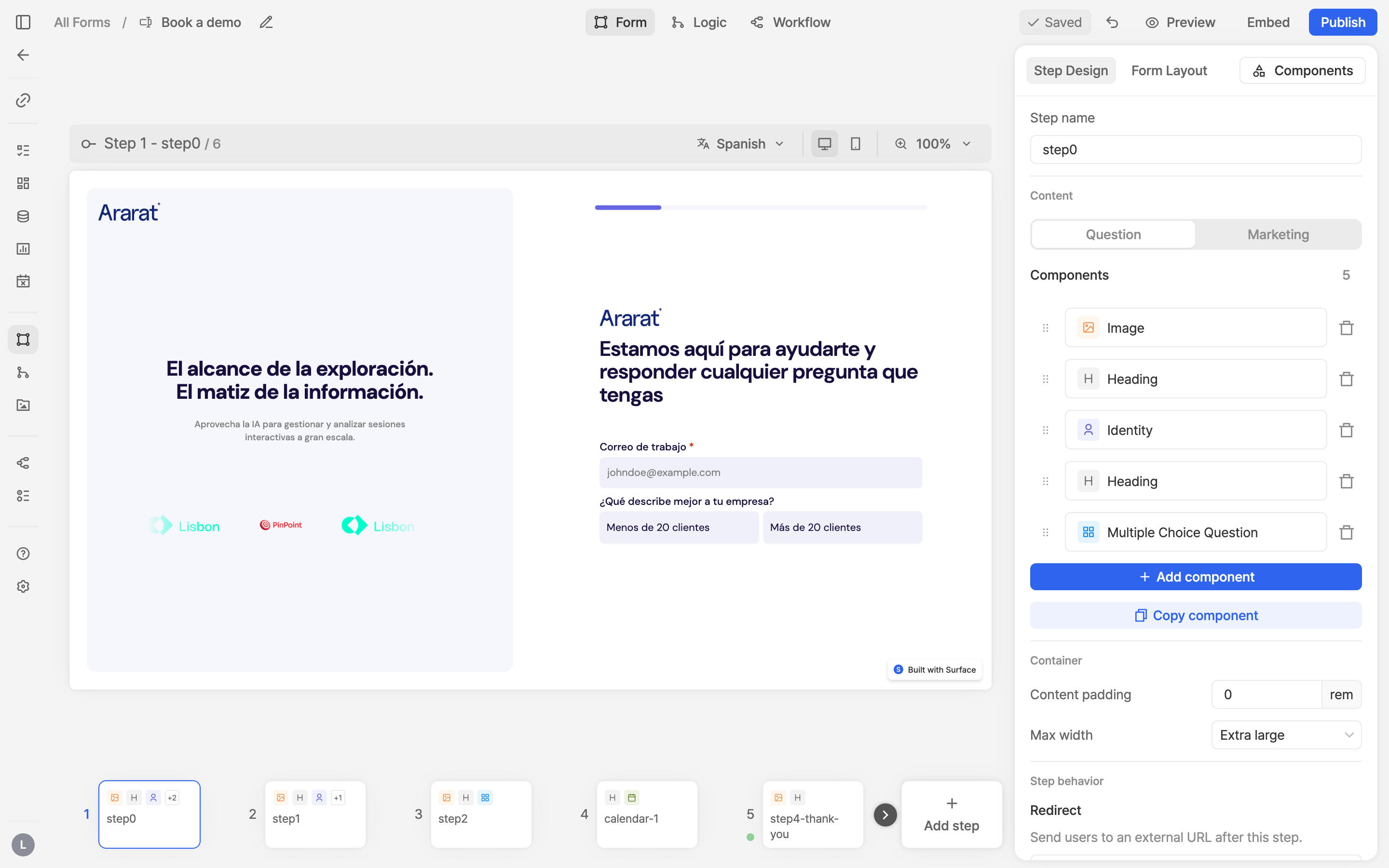 Pick a language from the menu to preview the whole form in it, step by step.
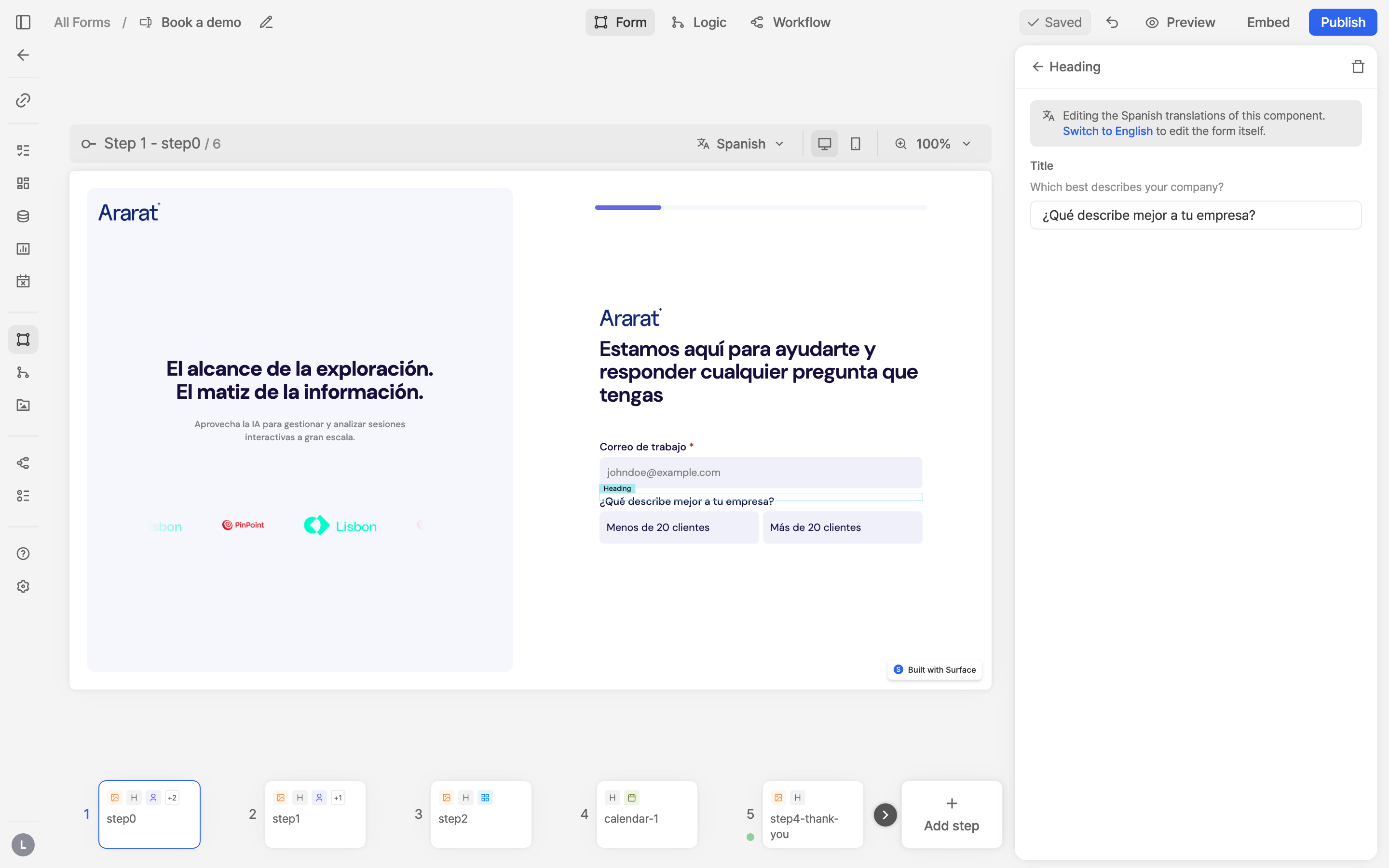 While a translated language is previewed, selecting a component shows that
component's texts in the language, each with the original above it. Edit any of
them; your wording stays until the original text changes. **Switch to English** (or
your form language) to edit the form itself.
## Step 4: Review every text [#step-4-review-every-text]
While a translated language is previewed, selecting a component shows that
component's texts in the language, each with the original above it. Edit any of
them; your wording stays until the original text changes. **Switch to English** (or
your form language) to edit the form itself.
## Step 4: Review every text [#step-4-review-every-text]
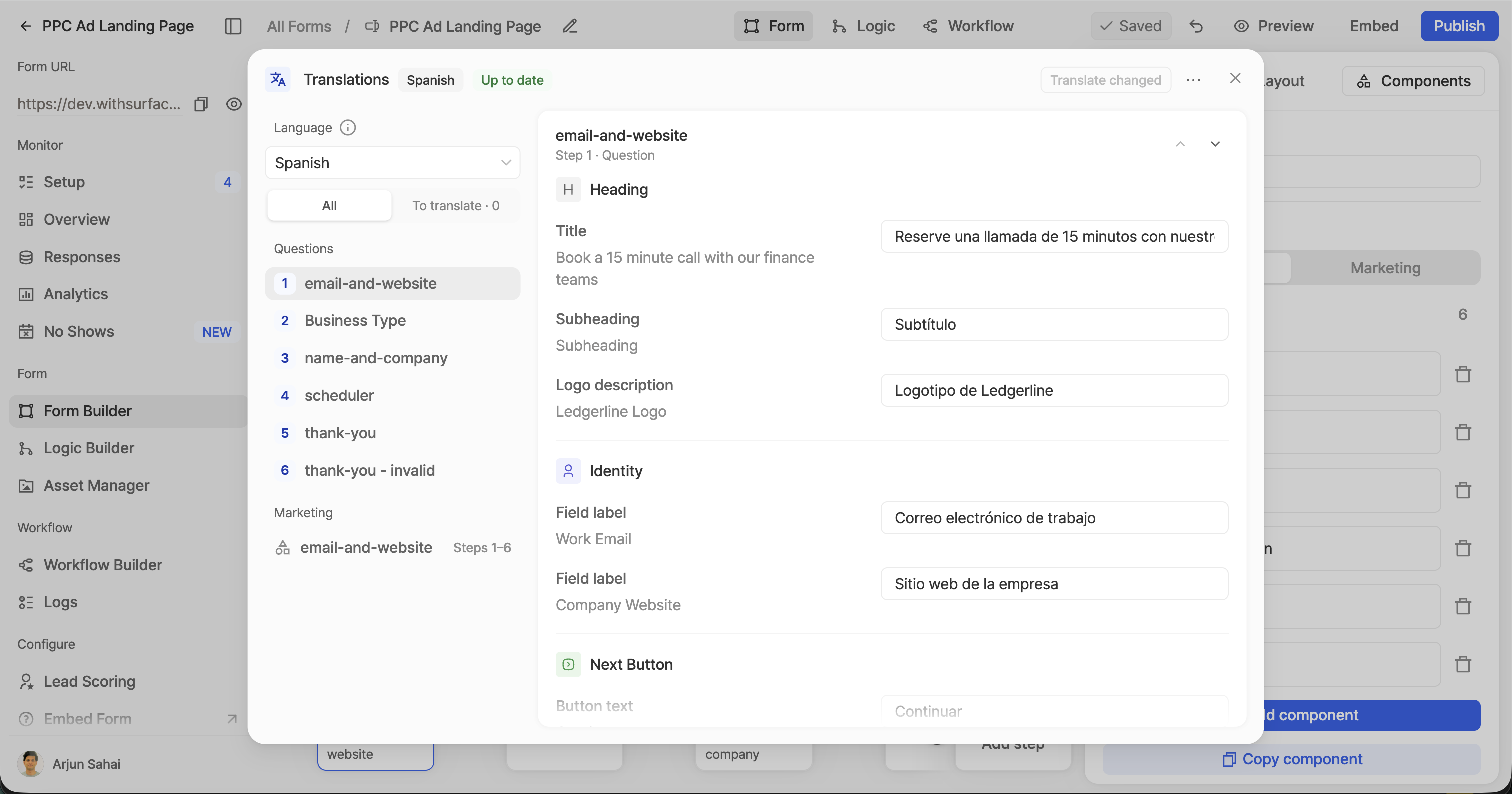 **Review translations…** in the language menu opens every text of the form, grouped
by step and component. From here you can:
* filter to **Needs translation** to see only texts that changed or were never
translated;
* **Translate changed** to translate those and keep everything else, including
your edits;
* **Retranslate all** or **Remove language** from the ⋯ menu.
## Step 5: Publish [#step-5-publish]
**Review translations…** in the language menu opens every text of the form, grouped
by step and component. From here you can:
* filter to **Needs translation** to see only texts that changed or were never
translated;
* **Translate changed** to translate those and keep everything else, including
your edits;
* **Retranslate all** or **Remove language** from the ⋯ menu.
## Step 5: Publish [#step-5-publish]
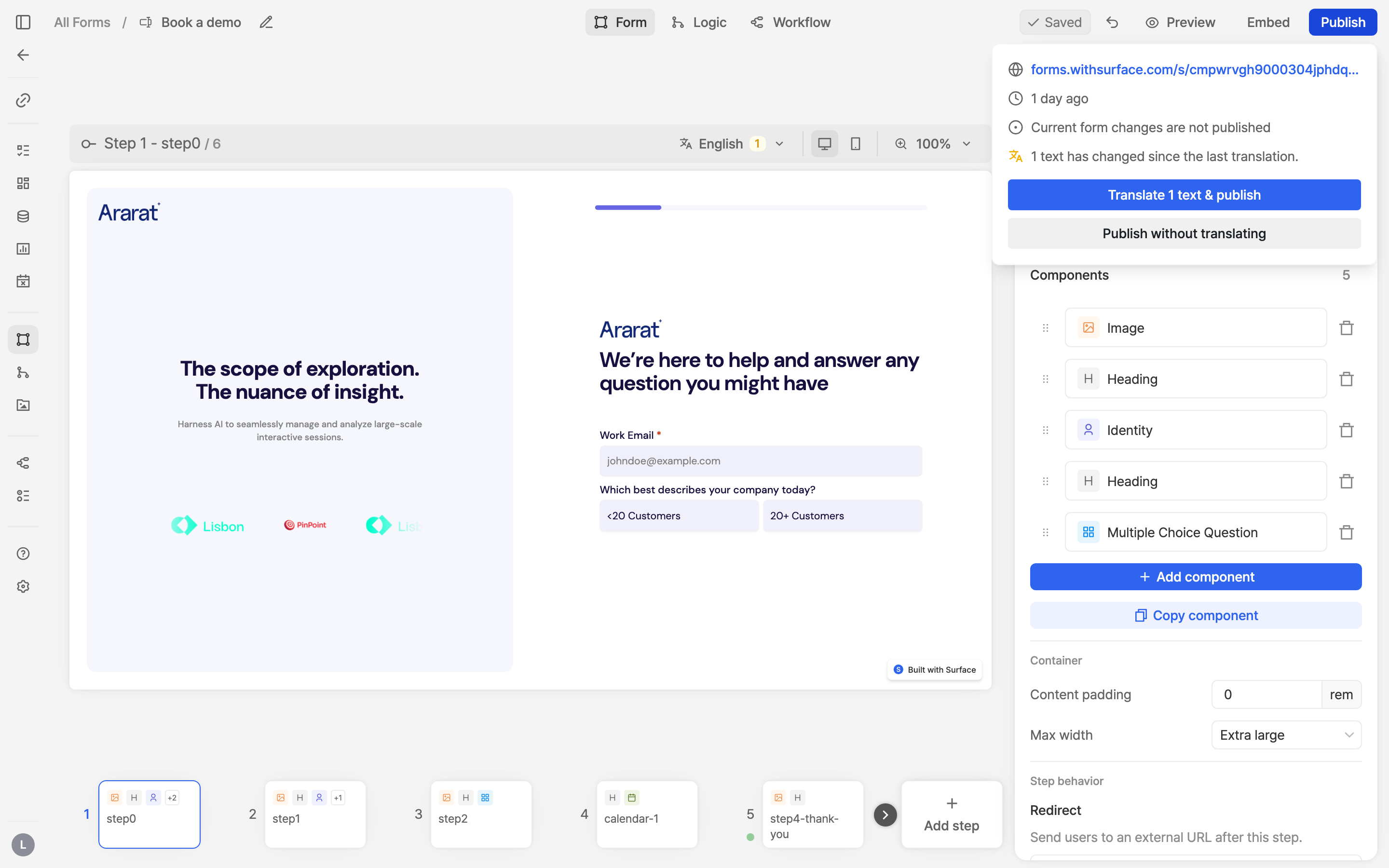 When you change a text after it was translated, the editor marks it: the language
menu shows how many texts need translating, and the Publish menu offers
**Translate N texts & publish** next to **Publish without translating**. A text
published without a translation shows in the form language.
## How a visitor's language is picked [#how-a-visitors-language-is-picked]
The first of these that names a language the form is translated into wins:
1. **The Surface tag**: `data-lang` on the tag, the `language` option of an embed,
or a `SurfaceSetLanguage()` call (see below).
2. **The URL**: `?surface-form-language=es` on the form's own link or on the page
embedding it.
3. **The browser language**, when **Detect the visitor's browser language** is on.
4. **The default language** from Form Settings.
Anything else, or a language the form is not translated into, shows the form
language.
Responses, workflows and integrations always see the form language: option values
and question labels do not change with the visitor's language.
## Use it on your site [#use-it-on-your-site]
### A link in one language [#a-link-in-one-language]
Add the parameter to the form link, or to the page the form is embedded on:
```text
https://forms.withsurface.com/s/YOUR_FORM_ID?surface-form-language=es
```
### Every form on the page [#every-form-on-the-page]
Set `data-lang` on the [Surface tag](https://www.withsurface.com/docs/platform/traffic/surface-tag). All embedded
forms translated into that language render in it; the others keep their own.
```html
```
### One embed in a fixed language [#one-embed-in-a-fixed-language]
Pass `language` as the fourth argument of any [embed](https://www.withsurface.com/docs/platform/forms/embedding).
It wins over the page's `data-lang` and over later `SurfaceSetLanguage()` calls.
```html
```
### Switch languages from your own language picker [#switch-languages-from-your-own-language-picker]
```js
// Every embedded form without a language of its own switches in place; answers are kept.
window.SurfaceSetLanguage("fr");
// Back to the URL, browser and default rules.
window.SurfaceSetLanguage(null);
```
When you change a text after it was translated, the editor marks it: the language
menu shows how many texts need translating, and the Publish menu offers
**Translate N texts & publish** next to **Publish without translating**. A text
published without a translation shows in the form language.
## How a visitor's language is picked [#how-a-visitors-language-is-picked]
The first of these that names a language the form is translated into wins:
1. **The Surface tag**: `data-lang` on the tag, the `language` option of an embed,
or a `SurfaceSetLanguage()` call (see below).
2. **The URL**: `?surface-form-language=es` on the form's own link or on the page
embedding it.
3. **The browser language**, when **Detect the visitor's browser language** is on.
4. **The default language** from Form Settings.
Anything else, or a language the form is not translated into, shows the form
language.
Responses, workflows and integrations always see the form language: option values
and question labels do not change with the visitor's language.
## Use it on your site [#use-it-on-your-site]
### A link in one language [#a-link-in-one-language]
Add the parameter to the form link, or to the page the form is embedded on:
```text
https://forms.withsurface.com/s/YOUR_FORM_ID?surface-form-language=es
```
### Every form on the page [#every-form-on-the-page]
Set `data-lang` on the [Surface tag](https://www.withsurface.com/docs/platform/traffic/surface-tag). All embedded
forms translated into that language render in it; the others keep their own.
```html
```
### One embed in a fixed language [#one-embed-in-a-fixed-language]
Pass `language` as the fourth argument of any [embed](https://www.withsurface.com/docs/platform/forms/embedding).
It wins over the page's `data-lang` and over later `SurfaceSetLanguage()` calls.
```html
```
### Switch languages from your own language picker [#switch-languages-from-your-own-language-picker]
```js
// Every embedded form without a language of its own switches in place; answers are kept.
window.SurfaceSetLanguage("fr");
// Back to the URL, browser and default rules.
window.SurfaceSetLanguage(null);
```