# Step 2: Configure HubSpot in Surface Workflow
Set up a workflow in Surface to send form submissions to your HubSpot form.
## Connect HubSpot to Surface [#connect-hubspot-to-surface]
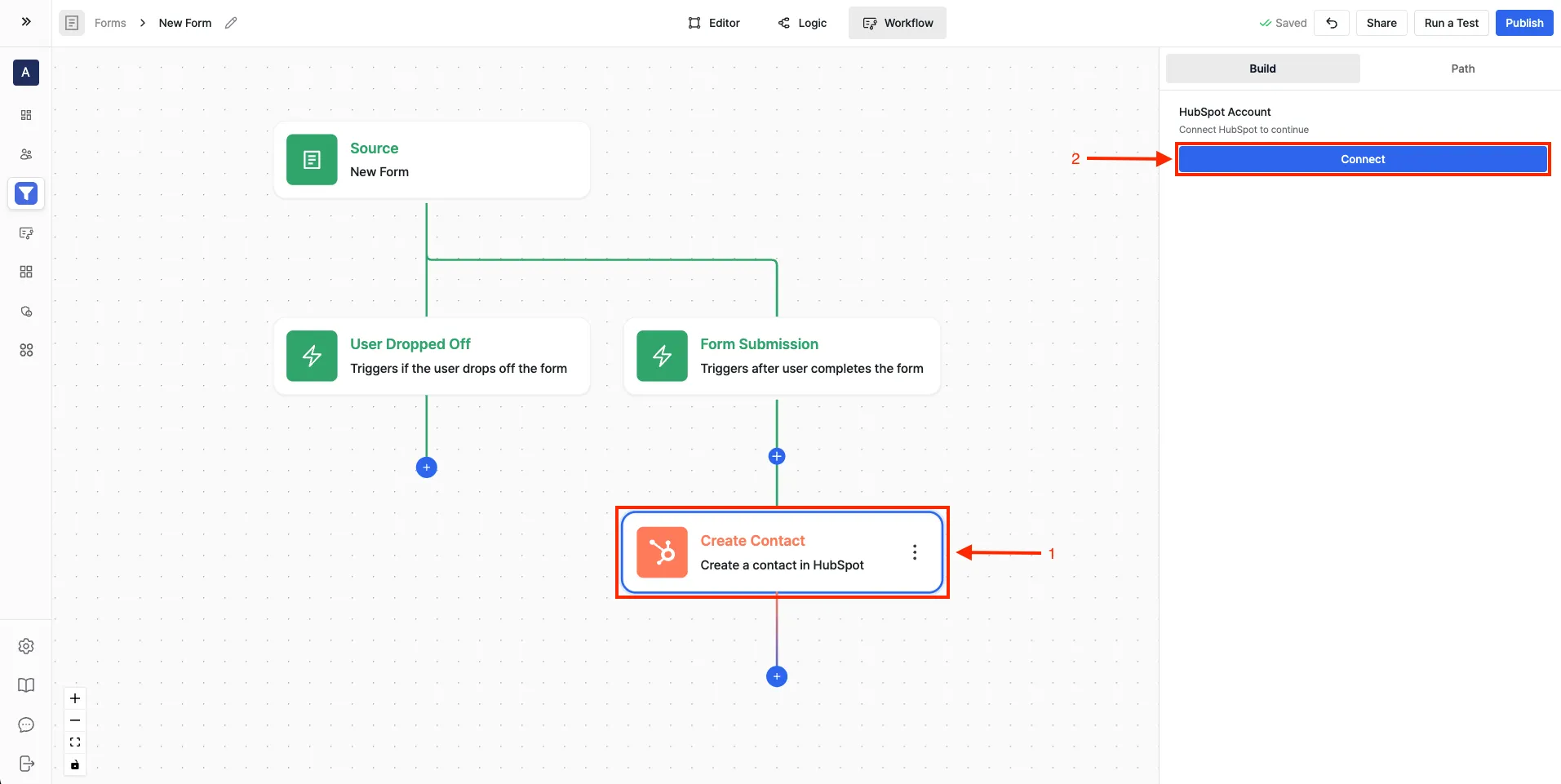 1. Navigate to the **Workflow Builder** in Surface
2. Add any HubSpot action and click **Connect**
3. Select your HubSpot organization when prompted
4. Accept Surface Labs invite
5. Click **Connect App** to complete setup
## Create a Workflow [#create-a-workflow]
1. Go to **Workflow Builder** from the sidebar
2. Click **Create workflow**
3. Choose trigger type:
* **Finished** - For complete submissions
* **Dropped Off** - For partial submissions
## Add HubSpot Action [#add-hubspot-action]
1. Navigate to the **Workflow Builder** in Surface
2. Add any HubSpot action and click **Connect**
3. Select your HubSpot organization when prompted
4. Accept Surface Labs invite
5. Click **Connect App** to complete setup
## Create a Workflow [#create-a-workflow]
1. Go to **Workflow Builder** from the sidebar
2. Click **Create workflow**
3. Choose trigger type:
* **Finished** - For complete submissions
* **Dropped Off** - For partial submissions
## Add HubSpot Action [#add-hubspot-action]
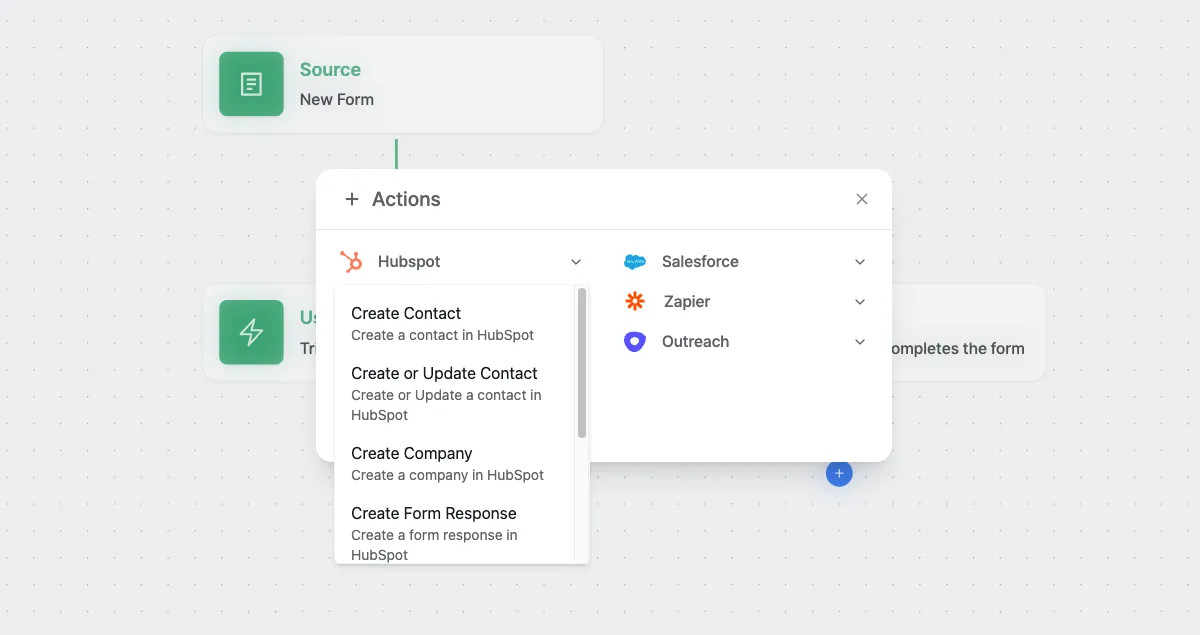 1. Click **+ Actions**
2. Select **HubSpot** from the actions list
3. Choose **Create Form Response** action
## Configure Form Response Action [#configure-form-response-action]
### Select Your HubSpot Form [#select-your-hubspot-form]
1. Click **+ Actions**
2. Select **HubSpot** from the actions list
3. Choose **Create Form Response** action
## Configure Form Response Action [#configure-form-response-action]
### Select Your HubSpot Form [#select-your-hubspot-form]
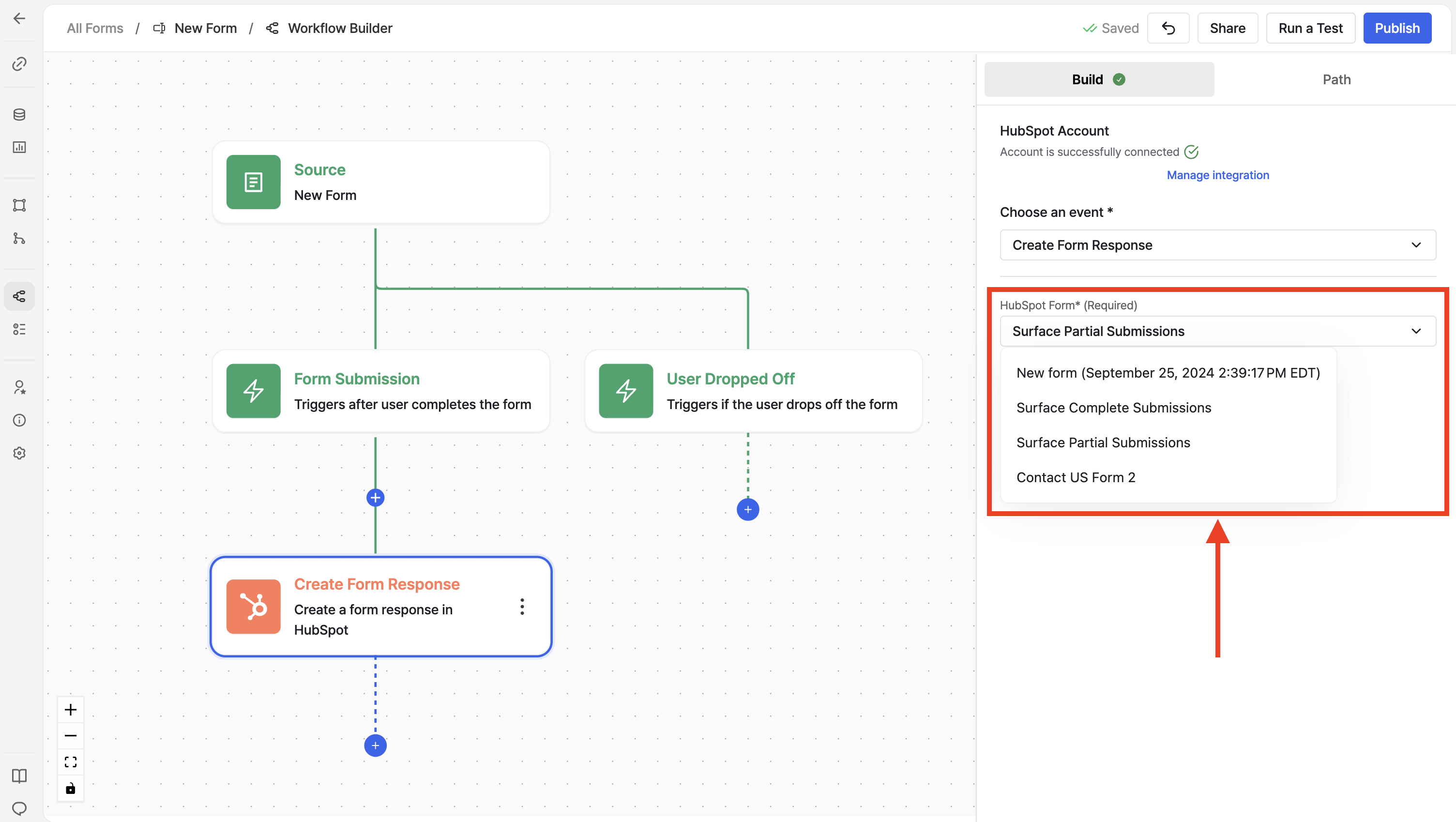 1. Click on the **HubSpot Form** dropdown
2. Select the form you want to use for this workflow
### Get Internal Names from HubSpot Form Fields [#get-internal-names-from-hubspot-form-fields]
You need the **internal names** (also called API names) of your HubSpot form fields. These are what you enter as the **Value** when mapping in Surface.
1. Click on the **HubSpot Form** dropdown
2. Select the form you want to use for this workflow
### Get Internal Names from HubSpot Form Fields [#get-internal-names-from-hubspot-form-fields]
You need the **internal names** (also called API names) of your HubSpot form fields. These are what you enter as the **Value** when mapping in Surface.
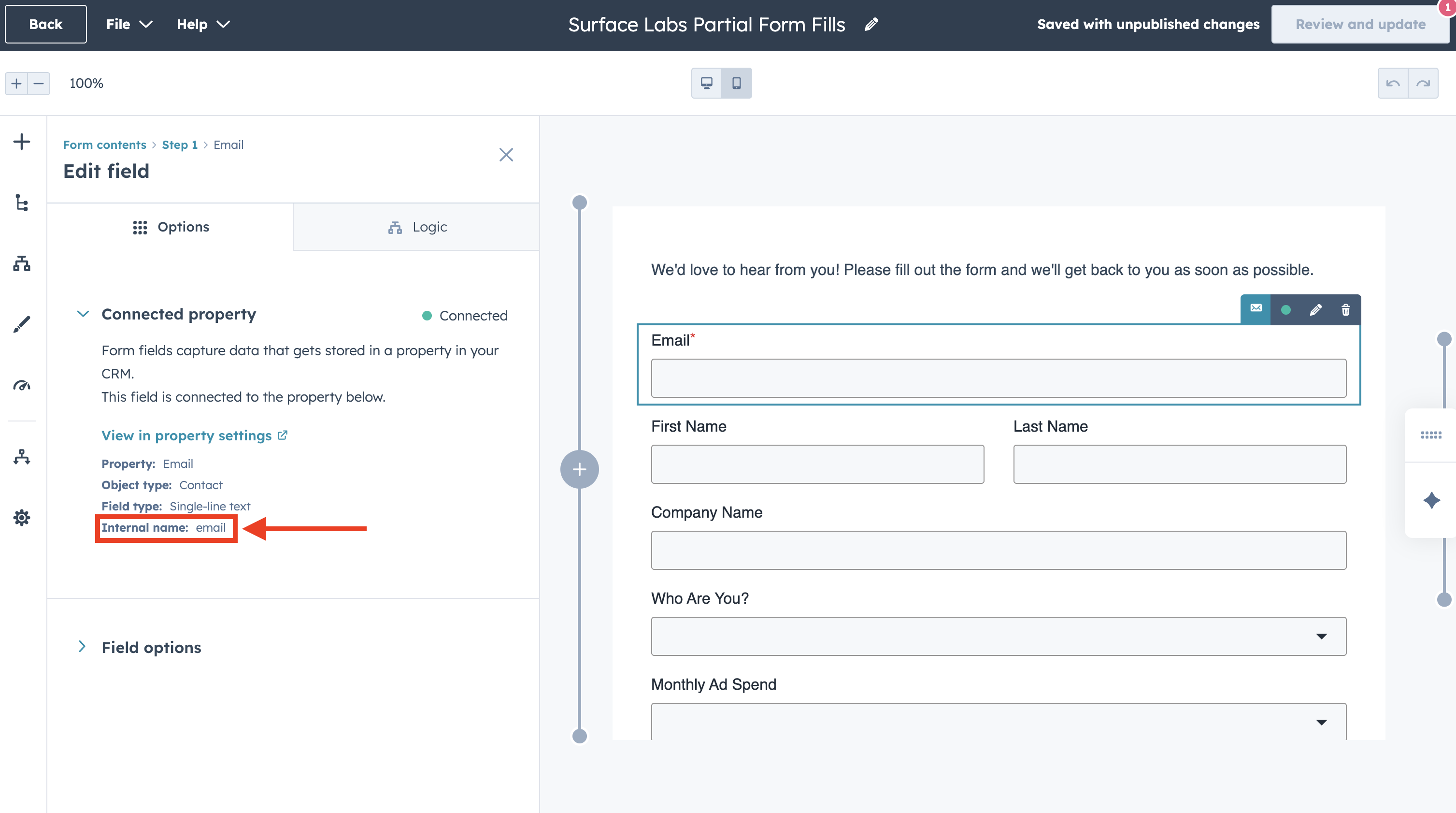 To find the internal name for each HubSpot form field:
1. In your HubSpot form editor, **select the field** you want to map (e.g., Email or First Name)
2. In the **Edit field** panel on the left, click on **Connected property** (it will show as "Connected" with a green indicator)
3. Under the Connected property section, you'll see the **Internal name** (e.g., `email` or `firstname`)
The internal name is different from the field label. For example, a field labeled "Email Address" might have an internal name of `email` or `emailaddress`. Always use the exact internal name shown in the Connected property section.
### Map Surface Form Fields to HubSpot Form Fields [#map-surface-form-fields-to-hubspot-form-fields]
To find the internal name for each HubSpot form field:
1. In your HubSpot form editor, **select the field** you want to map (e.g., Email or First Name)
2. In the **Edit field** panel on the left, click on **Connected property** (it will show as "Connected" with a green indicator)
3. Under the Connected property section, you'll see the **Internal name** (e.g., `email` or `firstname`)
The internal name is different from the field label. For example, a field labeled "Email Address" might have an internal name of `email` or `emailaddress`. Always use the exact internal name shown in the Connected property section.
### Map Surface Form Fields to HubSpot Form Fields [#map-surface-form-fields-to-hubspot-form-fields]
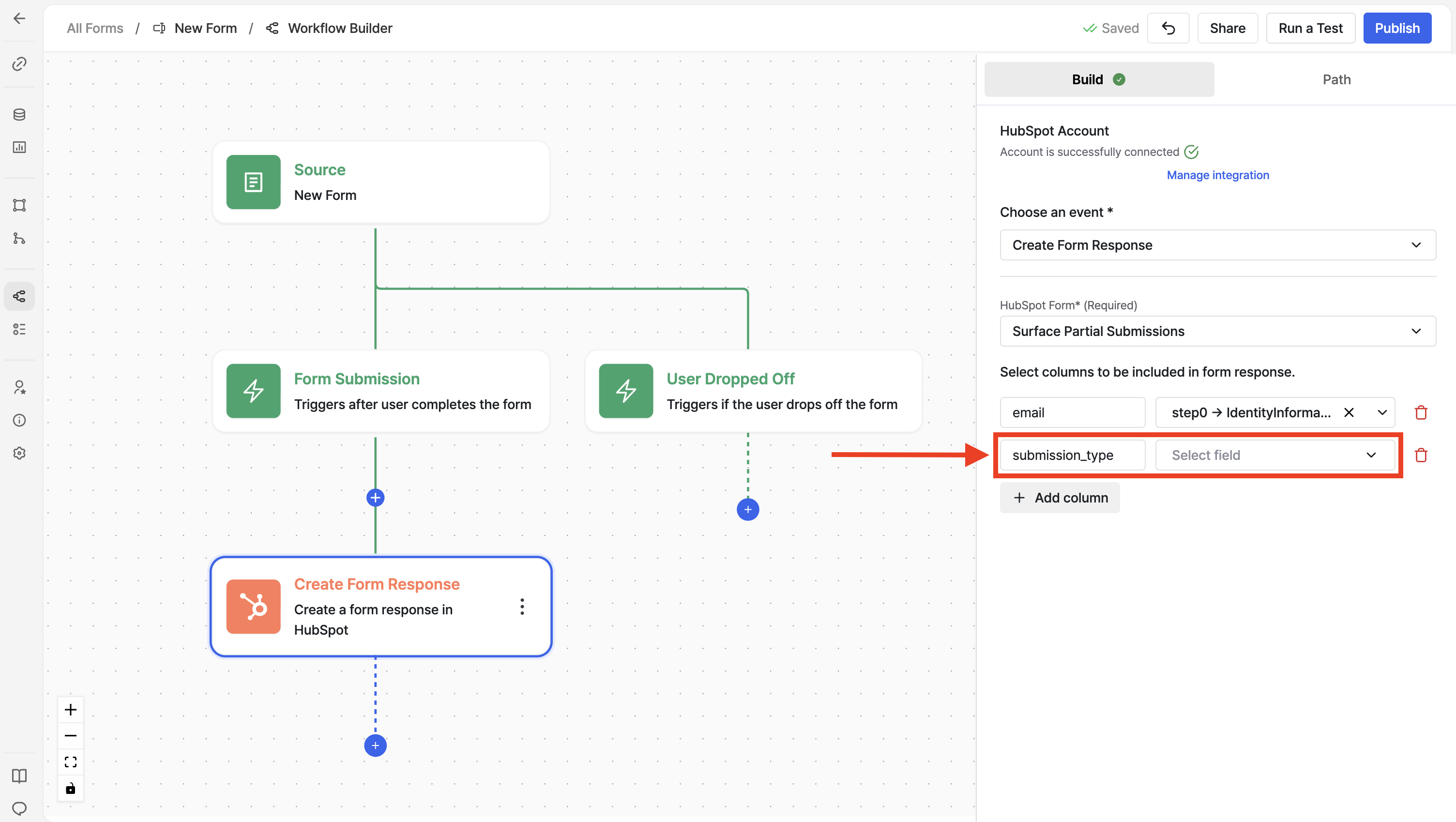 Map your Surface Form fields:
1. Click on **Add column** button to add a new field mapping
2. **Key (Surface Field)**: Select the field from your Surface Form
* Example: `email` from Form Submission or Lead
* Example: `firstName` from Form Submission or Lead
3. **Value (HubSpot Internal Name)**: Enter the exact internal name you found in HubSpot
* Example: `email` (from the Email field's Connected property)
* Example: `firstname` (from the First Name field's Connected property)
4. **HubSpot Field**: Select the corresponding HubSpot form field from the dropdown
* Example: Email
* Example: First Name
**Mapping Examples:**
| Surface Field (Key) | HubSpot Internal Name (Value) | HubSpot Field |
| ---------------------------------- | ----------------------------- | ------------- |
| `email` (from Form Submission) | `email` | Email |
| `firstName` (from Form Submission) | `firstname` | First Name |
The **Value** field must match the internal name exactly as shown in HubSpot's Connected property section. This is case-sensitive: `email` is different from `Email` or `EMAIL`.
## Configure Additional HubSpot Actions (Optional) [#configure-additional-hubspot-actions-optional]
You can add multiple HubSpot actions to your workflow:
* **Create Contact** - Create a new contact in HubSpot
* **Create or Update Contact** - Create or update a contact
* **Create Company** - Create a company record
* **Create Deal** - Create a new deal
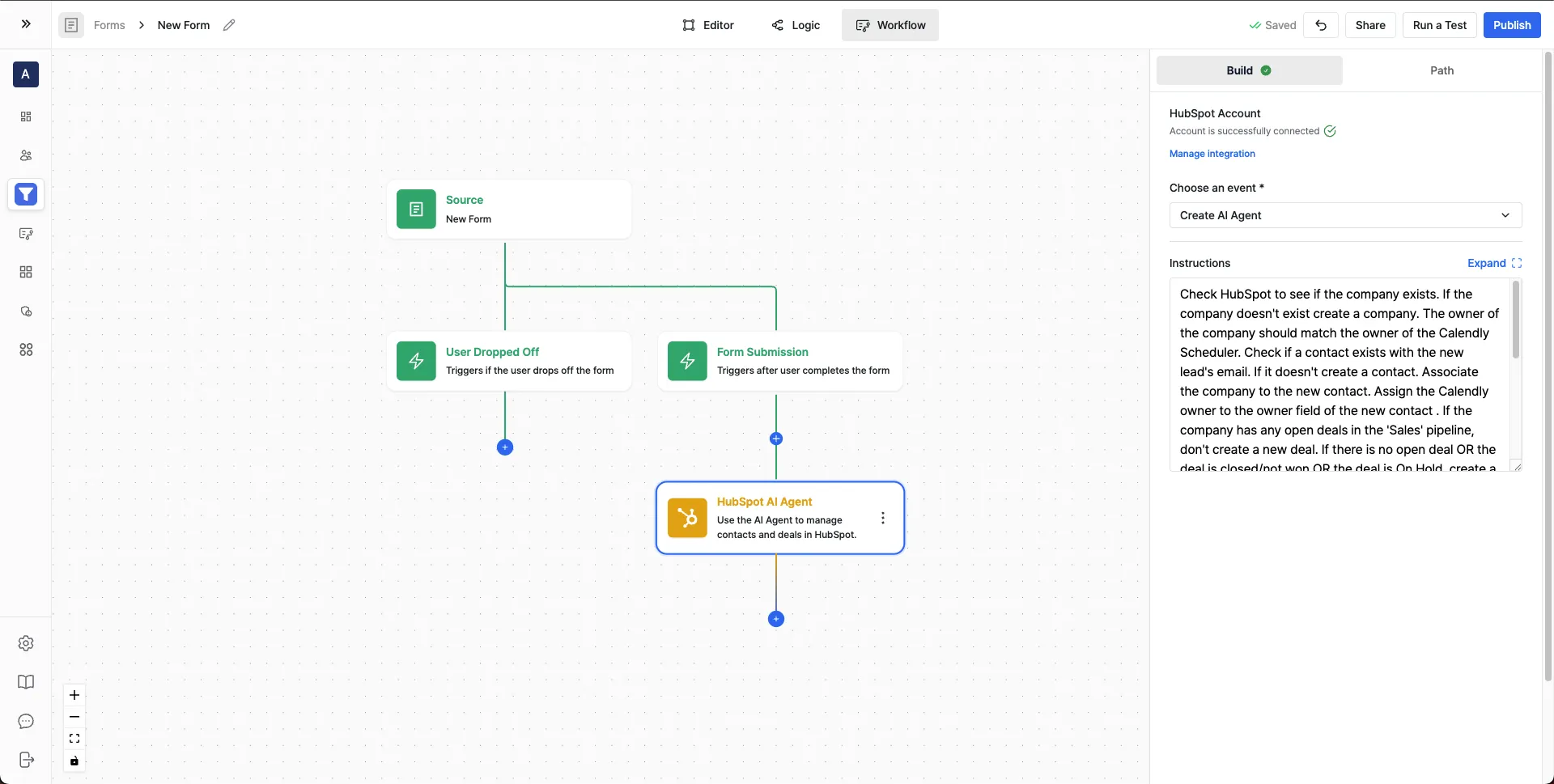
* **HubSpot AI Agent** - Use AI to manage contacts and deals automatically
Map your Surface Form fields:
1. Click on **Add column** button to add a new field mapping
2. **Key (Surface Field)**: Select the field from your Surface Form
* Example: `email` from Form Submission or Lead
* Example: `firstName` from Form Submission or Lead
3. **Value (HubSpot Internal Name)**: Enter the exact internal name you found in HubSpot
* Example: `email` (from the Email field's Connected property)
* Example: `firstname` (from the First Name field's Connected property)
4. **HubSpot Field**: Select the corresponding HubSpot form field from the dropdown
* Example: Email
* Example: First Name
**Mapping Examples:**
| Surface Field (Key) | HubSpot Internal Name (Value) | HubSpot Field |
| ---------------------------------- | ----------------------------- | ------------- |
| `email` (from Form Submission) | `email` | Email |
| `firstName` (from Form Submission) | `firstname` | First Name |
The **Value** field must match the internal name exactly as shown in HubSpot's Connected property section. This is case-sensitive: `email` is different from `Email` or `EMAIL`.
## Configure Additional HubSpot Actions (Optional) [#configure-additional-hubspot-actions-optional]
You can add multiple HubSpot actions to your workflow:
* **Create Contact** - Create a new contact in HubSpot
* **Create or Update Contact** - Create or update a contact
* **Create Company** - Create a company record
* **Create Deal** - Create a new deal
* **HubSpot AI Agent** - Use AI to manage contacts and deals automatically