
Translate a Form
Turn on translations, let Surface translate every text into up to four languages, review them in the editor, and serve each visitor the form in their language.
Surface translates the texts you wrote: questions, options, buttons, placeholders, marketing copy and thank-you screens. Validation messages and the other copy Surface adds already follow the form language. Supported languages: English, Portuguese, Spanish, French, Chinese, Arabic, Japanese and Korean.
Step 1: Turn on translations
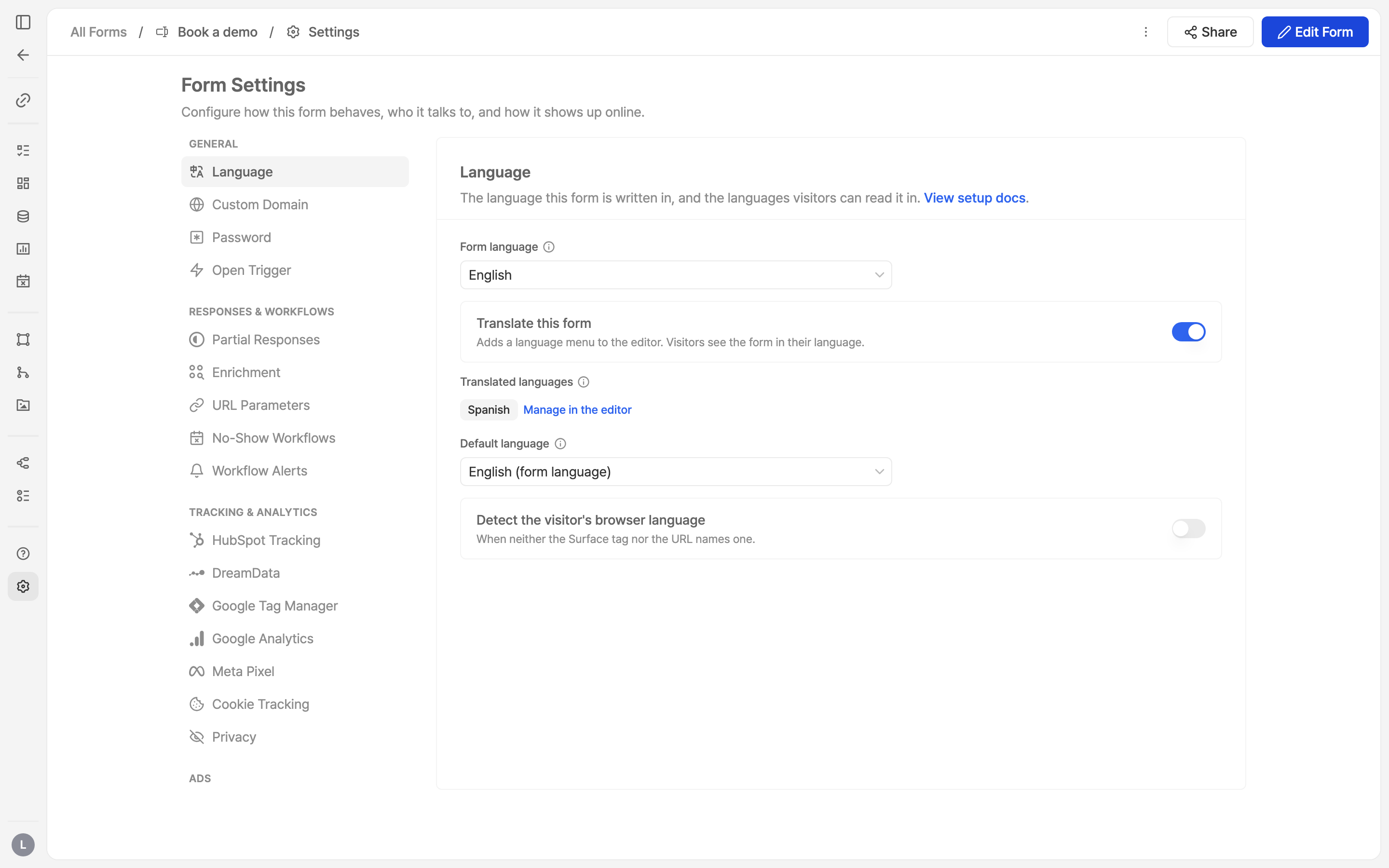
Open Form Settings › Language.
- Form language is the language you wrote the form in.
- Switch on Translate this form. The editor gains a language menu, and the published form serves its translated languages.
Three settings appear once it is on:
- Translated languages: the languages this form is translated into. They are added and removed in the editor (next step).
- Default language: shown when nothing else picks a language for a visitor.
- Detect the visitor's browser language: use the browser's language when it is one of the translated ones.
Step 2: Add a language
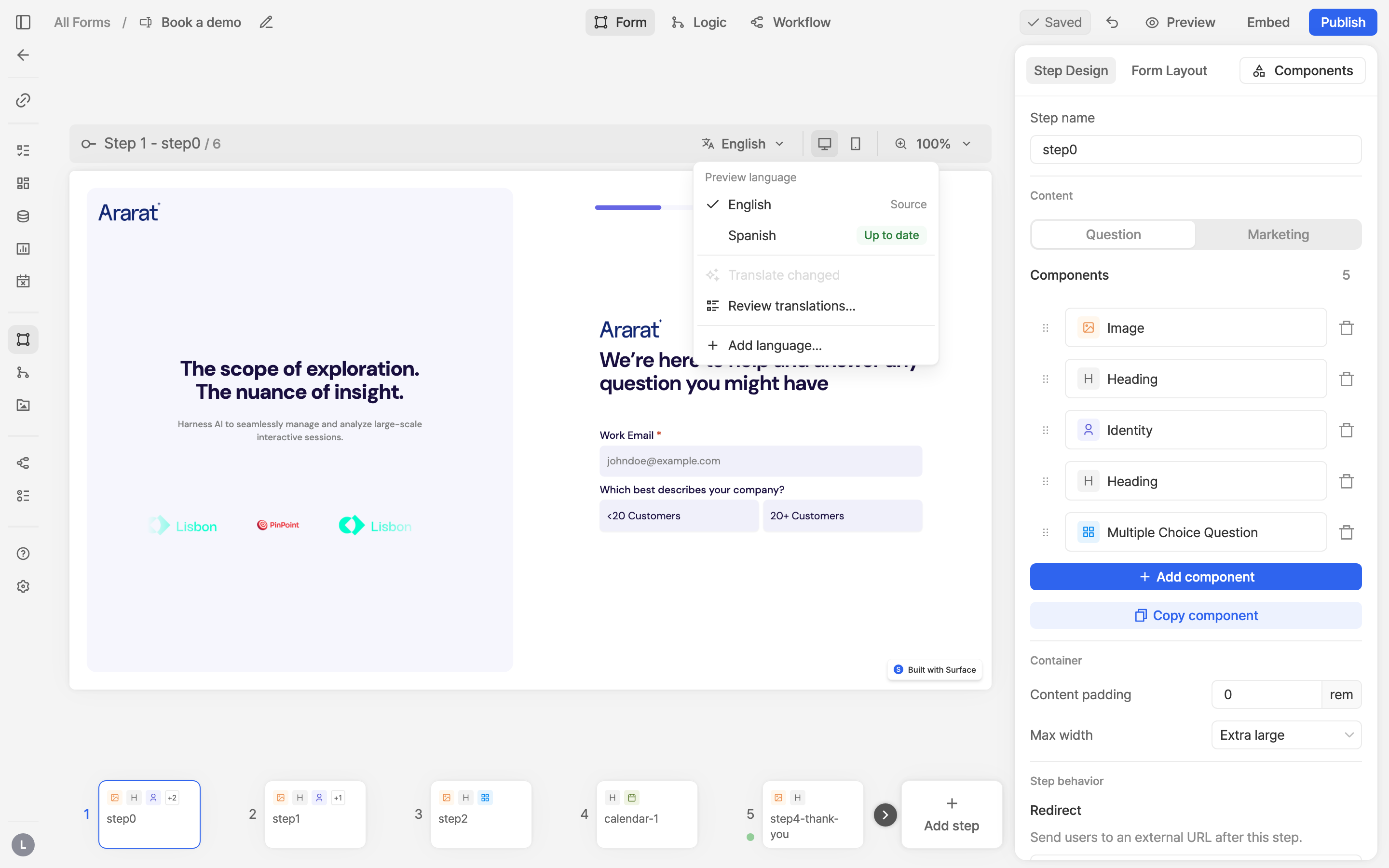
In the editor, the language menu sits above the preview. It lists the form language and every translated language with its status: Up to date, N to translate, Not translated or Failed.
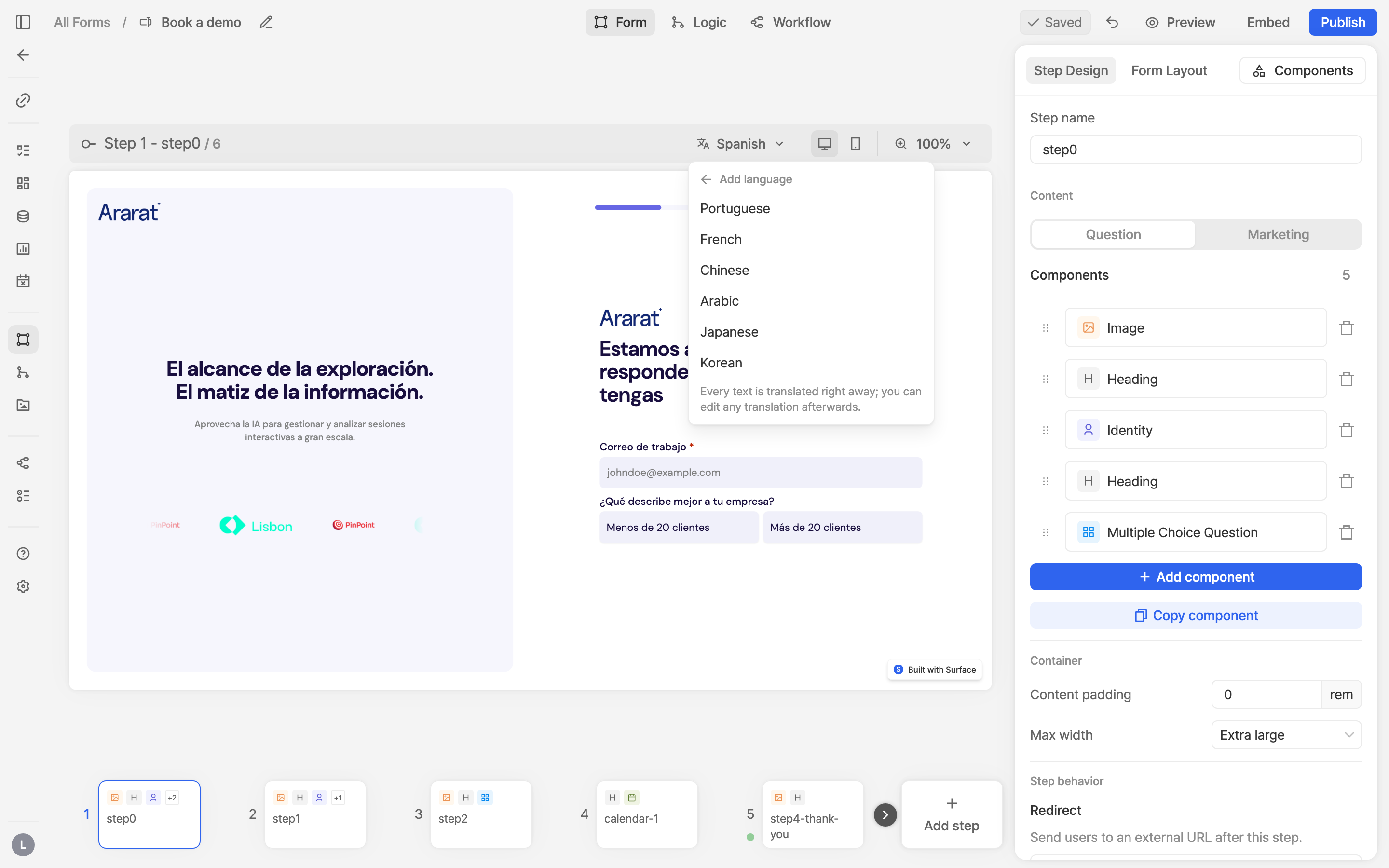
Choose Add language… and pick one. Every text is translated right away; a form can hold up to four translated languages.
Translations are produced by AI. Preview and read through them before you publish, especially product names and legal copy.
Step 3: Preview and edit a translation
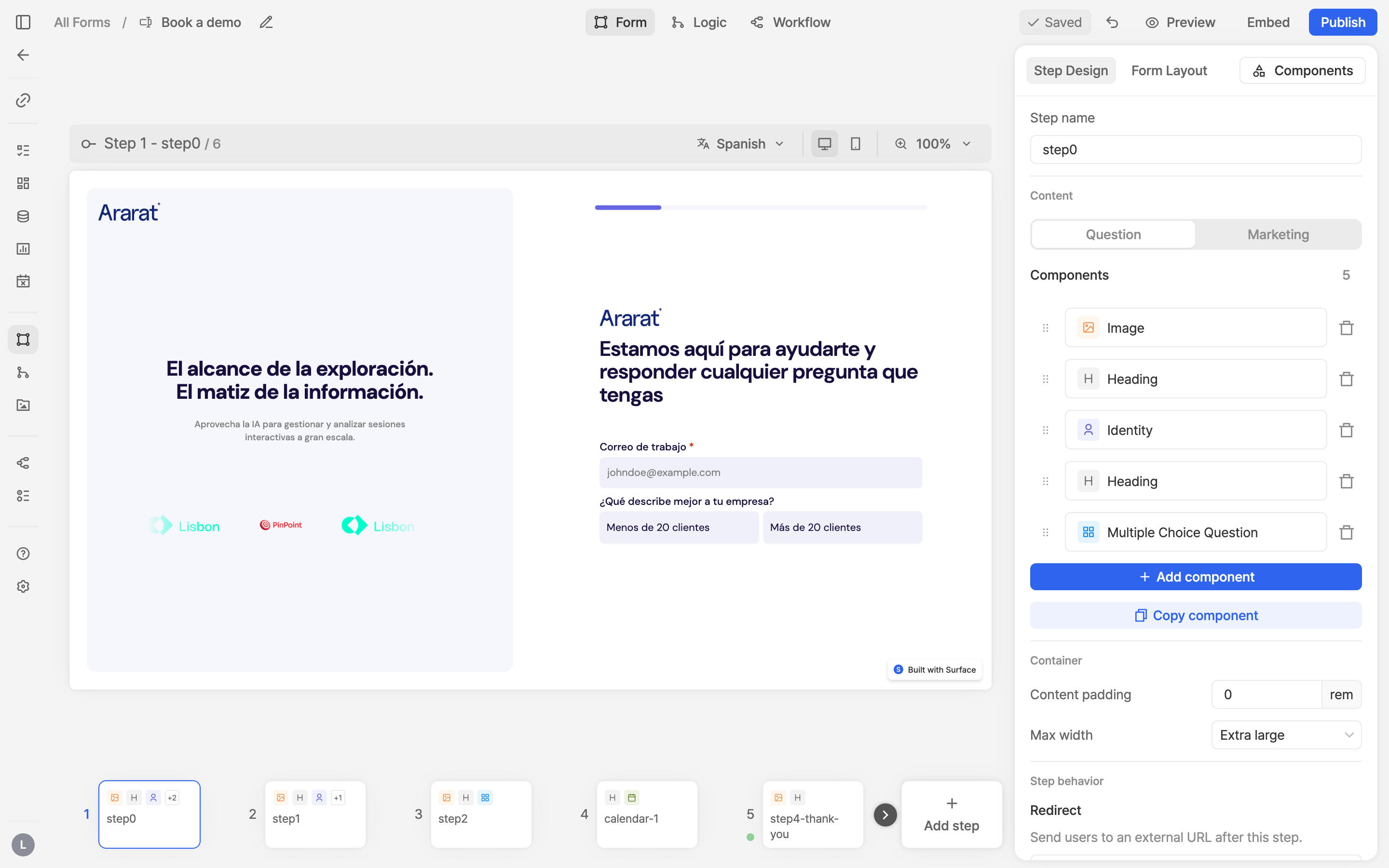
Pick a language from the menu to preview the whole form in it, step by step.
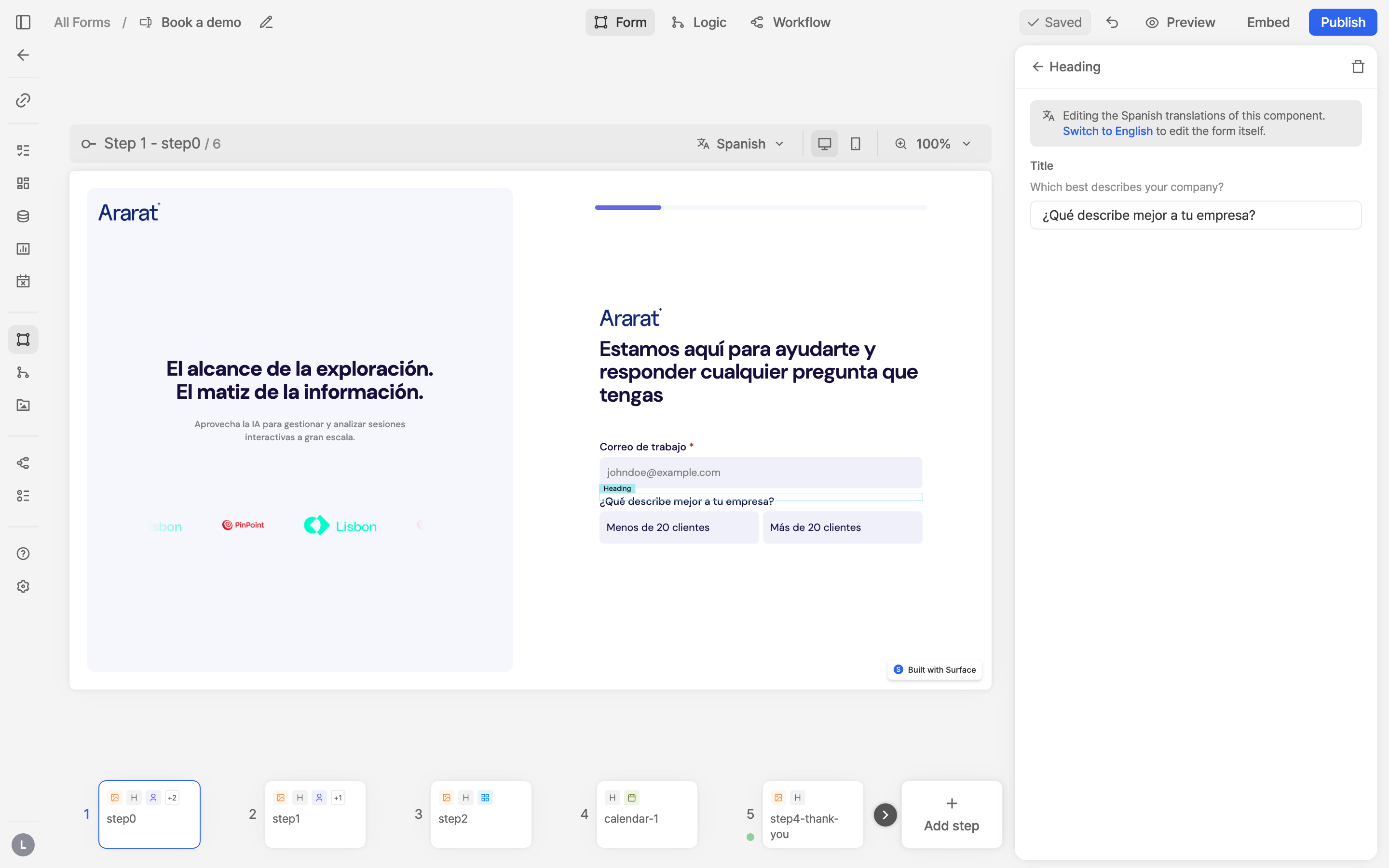
While a translated language is previewed, selecting a component shows that component's texts in the language, each with the original above it. Edit any of them; your wording stays until the original text changes. Switch to English (or your form language) to edit the form itself.
Step 4: Review every text
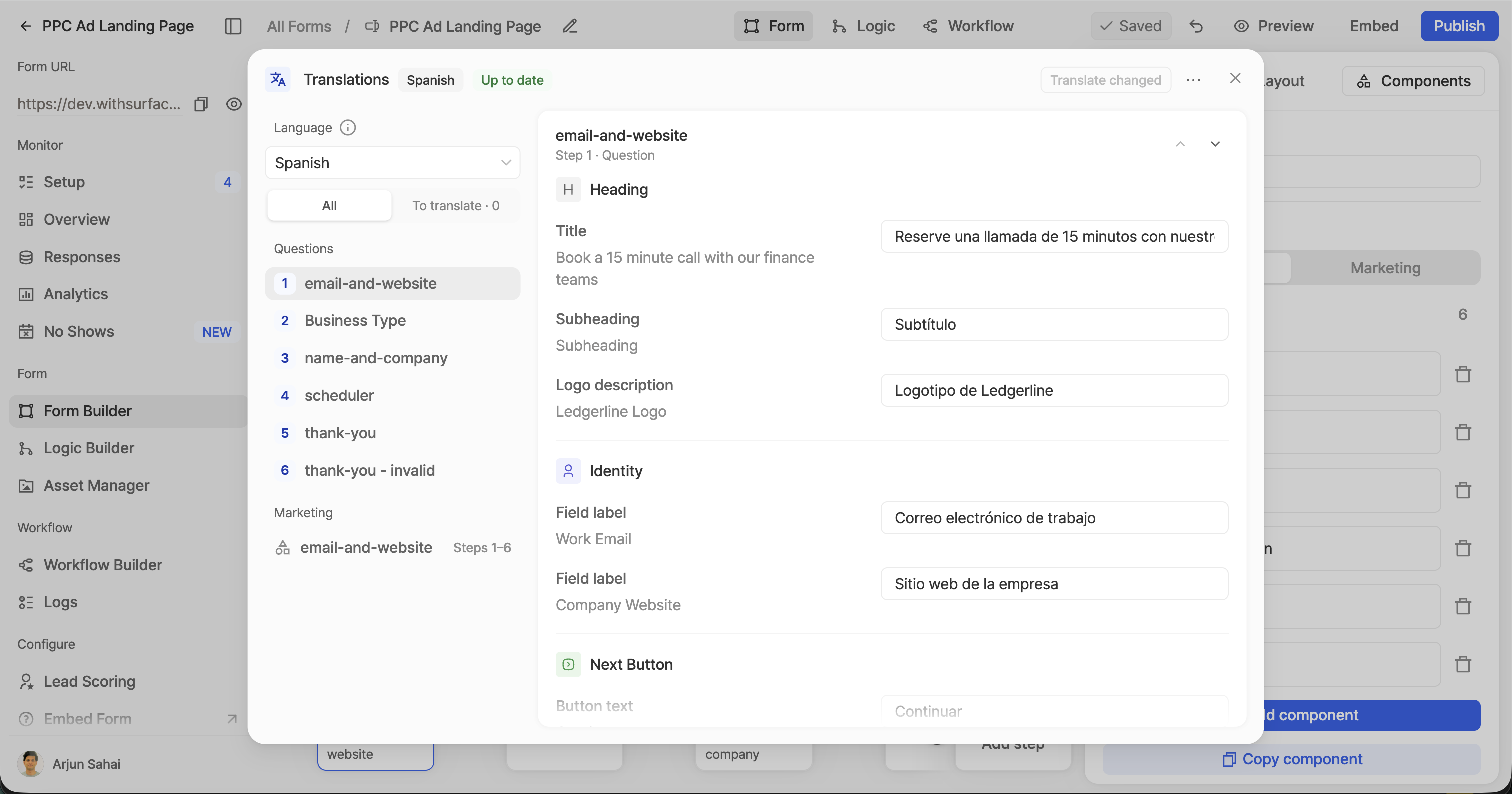
Review translations… in the language menu opens every text of the form, grouped by step and component. From here you can:
- filter to Needs translation to see only texts that changed or were never translated;
- Translate changed to translate those and keep everything else, including your edits;
- Retranslate all or Remove language from the ⋯ menu.
Step 5: Publish
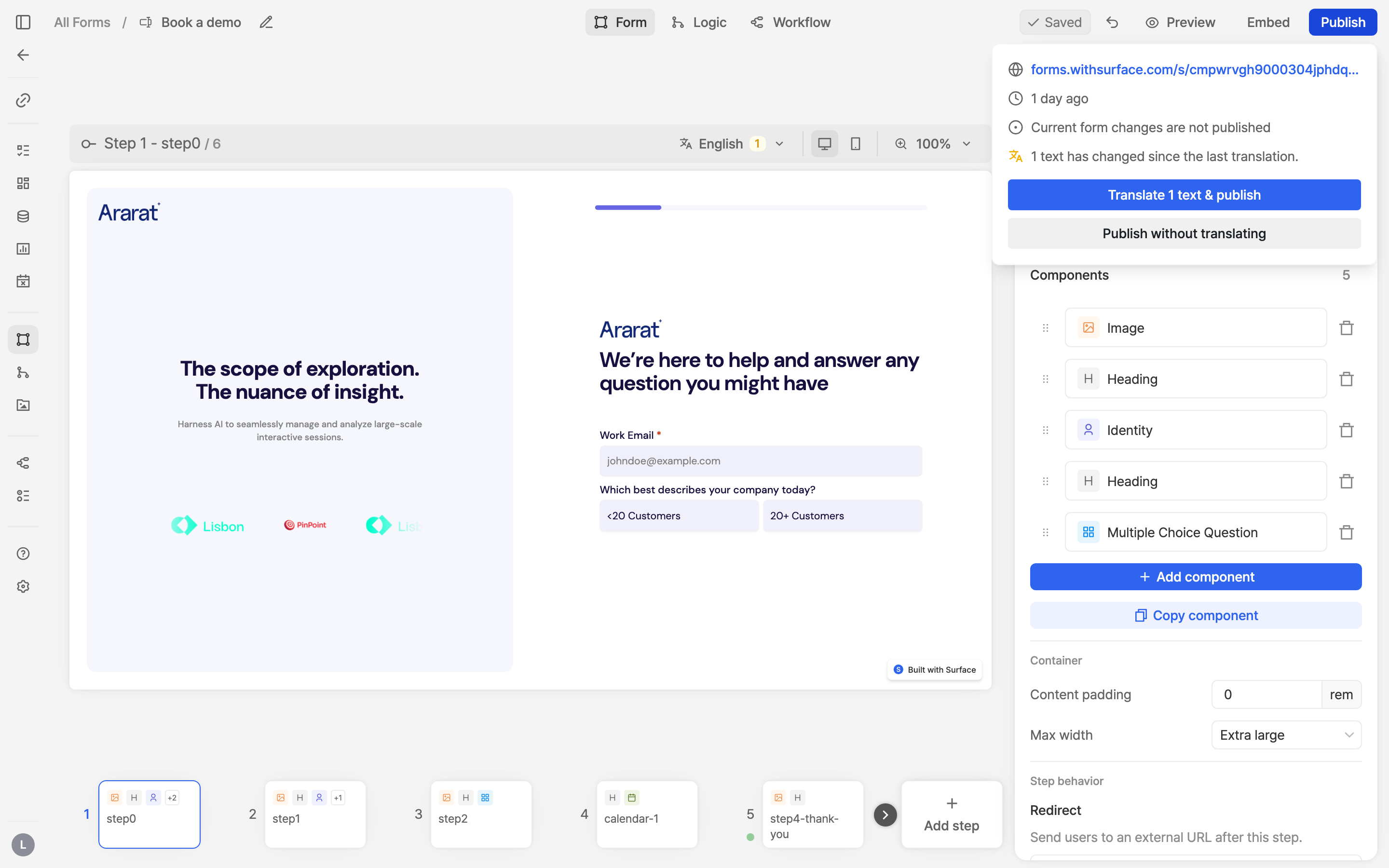
When you change a text after it was translated, the editor marks it: the language menu shows how many texts need translating, and the Publish menu offers Translate N texts & publish next to Publish without translating. A text published without a translation shows in the form language.
How a visitor's language is picked
The first of these that names a language the form is translated into wins:
- The Surface tag:
data-langon the tag, thelanguageoption of an embed, or aSurfaceSetLanguage()call (see below). - The URL:
?surface-form-language=eson the form's own link or on the page embedding it. - The browser language, when Detect the visitor's browser language is on.
- The default language from Form Settings.
Anything else, or a language the form is not translated into, shows the form language.
Responses, workflows and integrations always see the form language: option values and question labels do not change with the visitor's language.
Use it on your site
A link in one language
Add the parameter to the form link, or to the page the form is embedded on:
https://forms.withsurface.com/s/YOUR_FORM_ID?surface-form-language=esEvery form on the page
Set data-lang on the Surface tag. All embedded
forms translated into that language render in it; the others keep their own.
<script
  src="https://cdn.jsdelivr.net/gh/trysurface/scripts@latest/surface_tag.min.js"
  site-id="YOUR_SITE_ID"
  data-lang="es"
></script>
One embed in a fixed language
Pass language as the fourth argument of any embed.
It wins over the page's data-lang and over later SurfaceSetLanguage() calls.
<script>
  (function () {
    const surface_src = "REPLACE ME WITH FORM URL"
    const surface_embed_type = "popup"
    const target_element_class = "surface-form-button"
    const c = new SurfaceEmbed(surface_src, surface_embed_type, target_element_class, {
      language: "es",
    })
  })();
</script>
Switch languages from your own language picker
// Every embedded form without a language of its own switches in place; answers are kept.
window.SurfaceSetLanguage("fr");

// Back to the URL, browser and default rules.
window.SurfaceSetLanguage(null);
Ready to Get Started?
See it on your own site, or open the app and build the first form.