
HubSpot Forms Configuration
Step 1: Configure HubSpot Form
Configure your HubSpot form to accept submissions from Surface Forms
You can skip this step if you already have a HubSpot form you want to send submissions to. Go straight to Configure HubSpot in Surface Workflow to map your form and set up the sync.
Otherwise, create or adjust a HubSpot form so it accepts partial submissions.
Access Your HubSpot Form
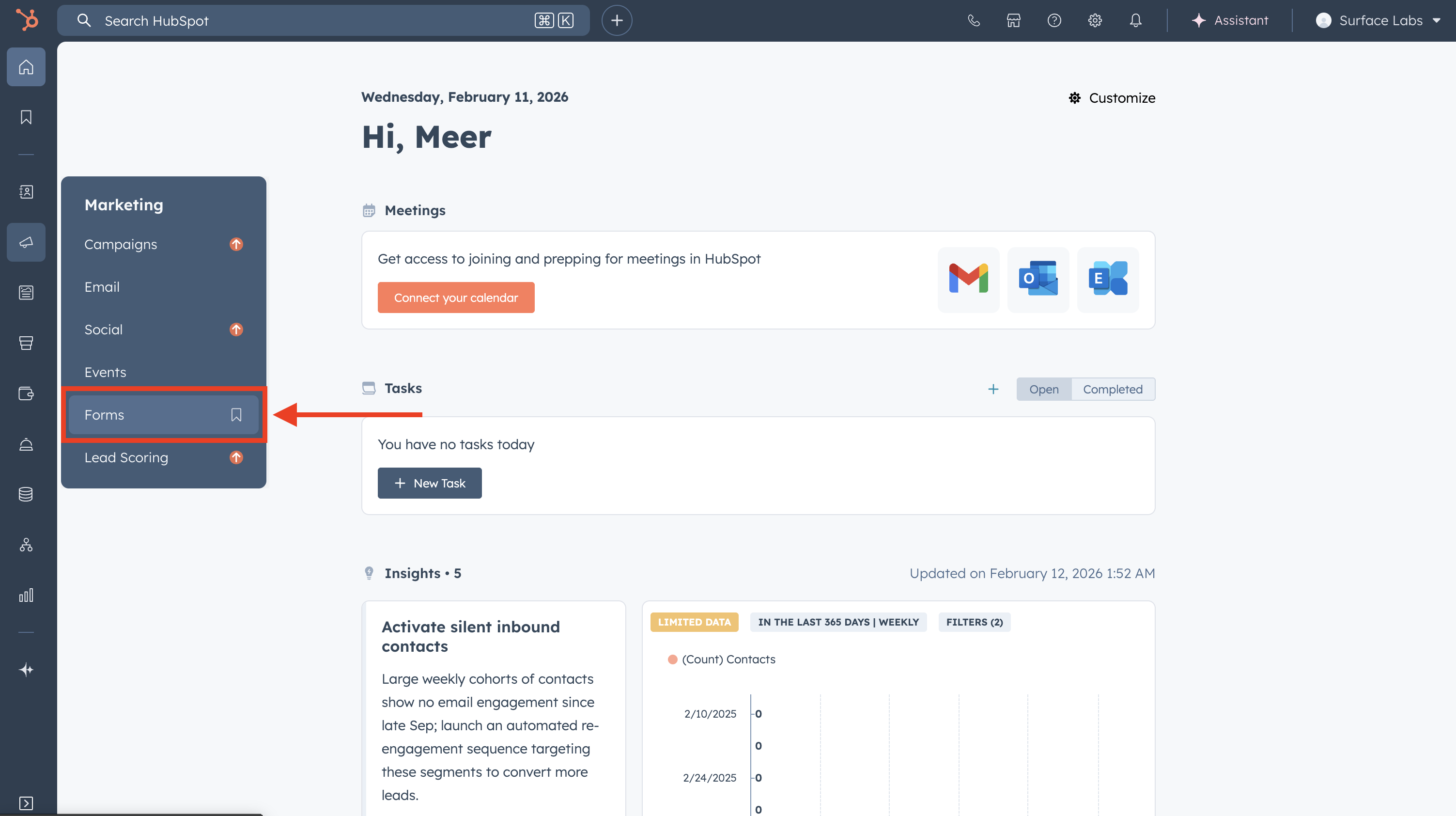
- Log in to your HubSpot account
- Navigate to Marketing → Forms
- Click on the form you want to modify
Make Existing Fields Optional (If Needed)
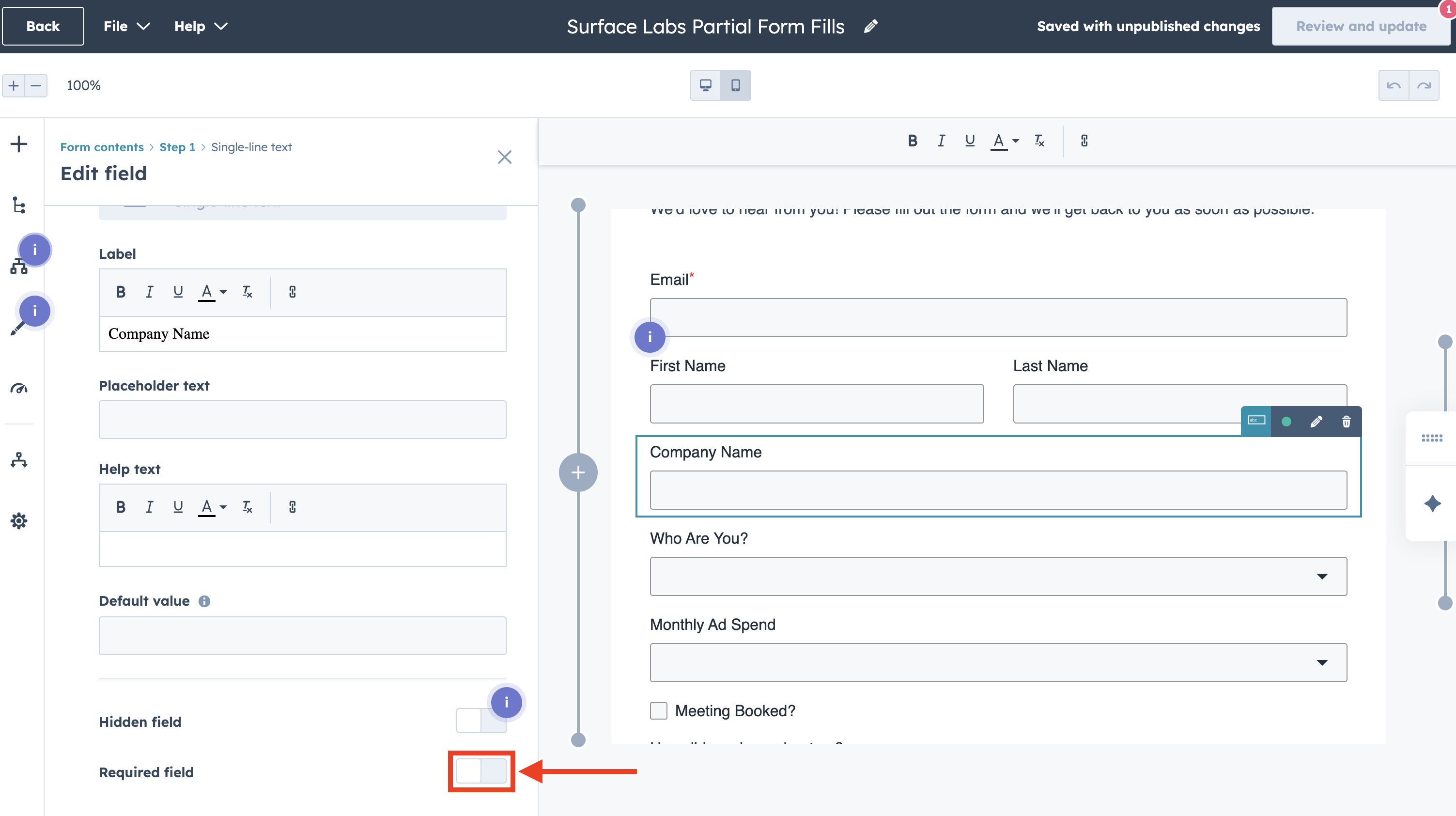
For submissions to work, you may need to make some required fields optional:
-
Click on each field that might be empty in submissions
-
Find the Required checkbox or toggle
-
disable the Required option for fields that:
- Are not essential for lead capture
- May be filled in later stages of the form
- Are not needed for your workflows
-
Keep required any fields that are:
- Essential for your workflows
- Needed for contact identification (like email)
- Required for your business logic
Best Practices
- Workflow Testing: Test workflows with both partial and complete submissions
- Documentation: Document which fields are optional and why
- Monitoring: Track partial vs. complete submissions to optimize your forms
Ready to Get Started?
See it on your own site, or open the app and build the first form.