
Step 1: Create HubSpot Form
Create a HubSpot form with all fields optional except email so partial Surface submissions can be recorded
Create a HubSpot form that Surface submits to when leads complete or drop off your Surface form. Make every field optional except email, so a partial submission (a lead who enters their email and leaves) still creates a valid form response in HubSpot for your automation to enroll.
Already have a HubSpot form? See Step 1: Configure HubSpot Form for how to make its existing fields optional.
Create a New Form in HubSpot
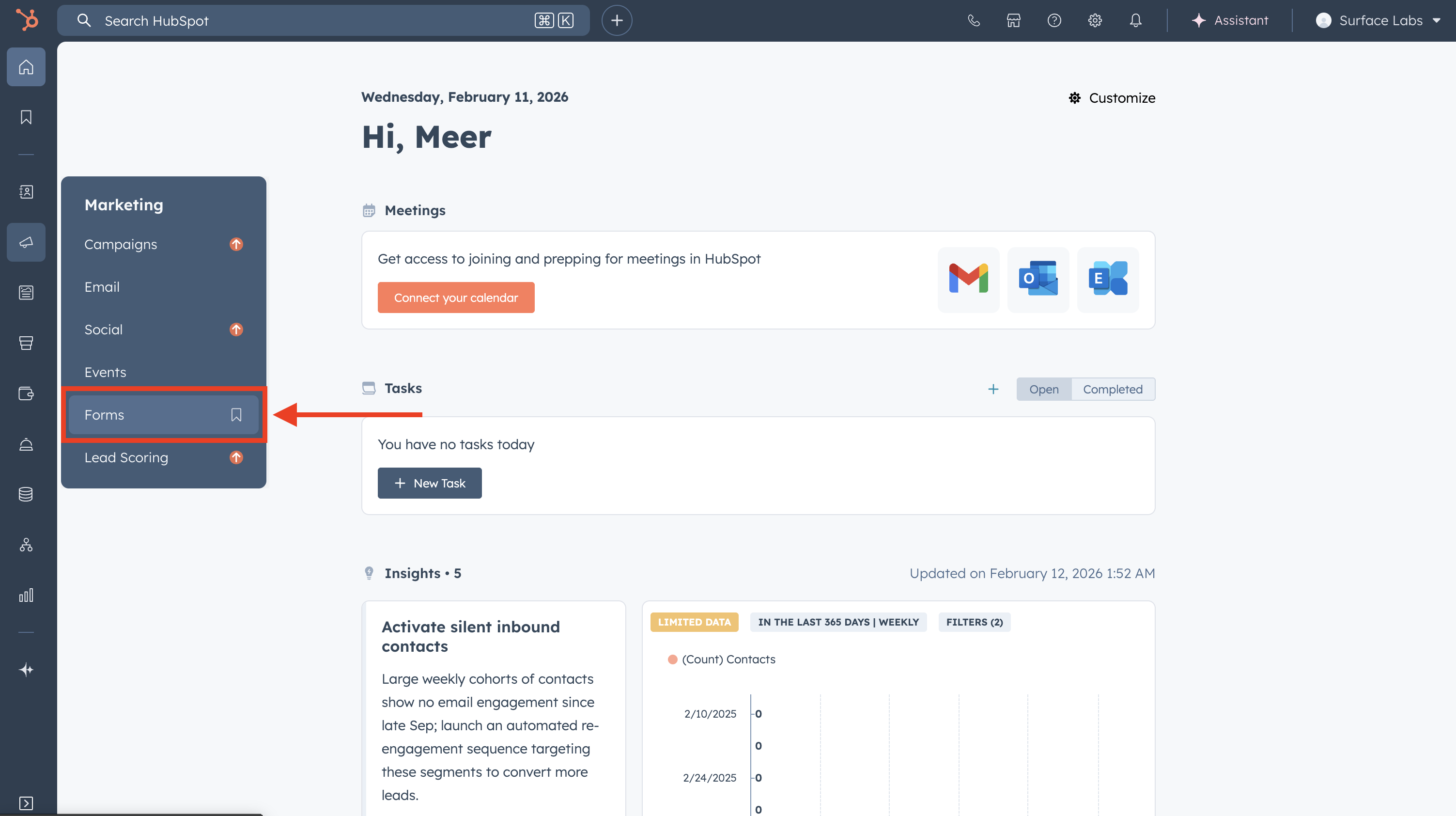
- In HubSpot, go to Marketing → Forms (or Marketing → Lead Capture → Forms depending on your HubSpot layout)
- Click Create form and choose Embedded (or the form type that fits your use case)
- Name the form (e.g., "Surface - Email sequence enrollment")
Set Fields: Email Required, Rest Optional
- Add the fields you want to capture (e.g., Email, First name, Last name, Company)
- For Email: keep it required so every submission has at least an email for the sequence
- For all other fields: set them to optional (not required), so partial submissions from Surface are accepted
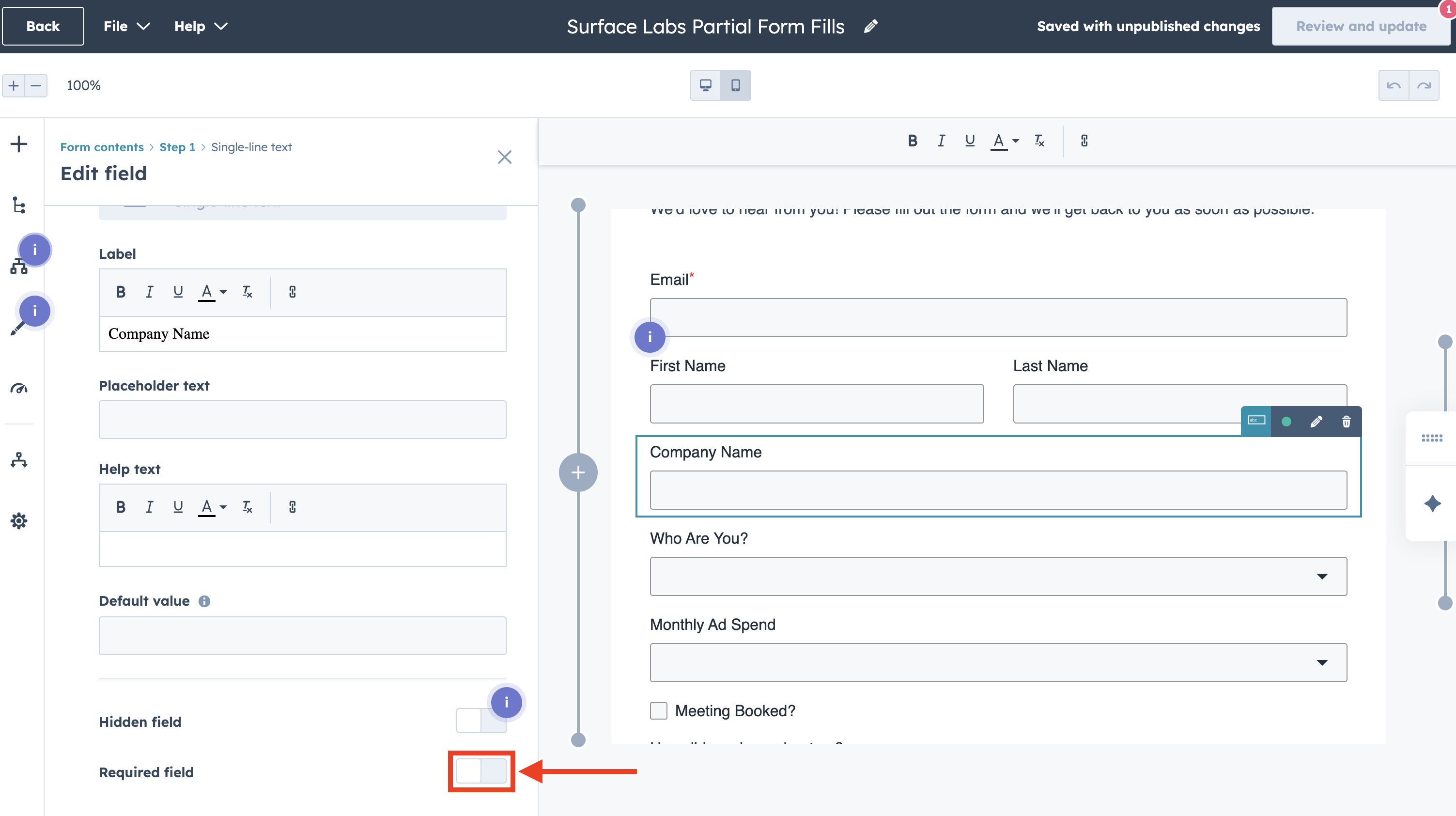
Match these fields to the ones you map in your Surface workflow. Use the same internal names (e.g., email, firstname, lastname) when configuring Create Form Response so data lines up with your sequence personalization tokens.
Connect Properties and Publish
- Ensure each form field is connected to the correct HubSpot contact property (e.g., Email →
email, First name →firstname) - Complete any other form settings (thank-you message, redirect, etc.)
- Publish the form
You don't need to embed this form on a page. Surface will submit to it via the API when you configure the workflow in Step 5: Connect HubSpot Form with Surface Workflow. Note the form name so you can select it in Step 4 (automation) and Step 5 (Surface workflow).
Next Step
Step 2: Create HubSpot Sequence, with the first email template, personalization tokens, and a meeting link.
You'll connect this form to Surface in Step 5. Steps 2-4 are done in HubSpot (sequence and automation) first.
Ready to Get Started?
See it on your own site, or open the app and build the first form.